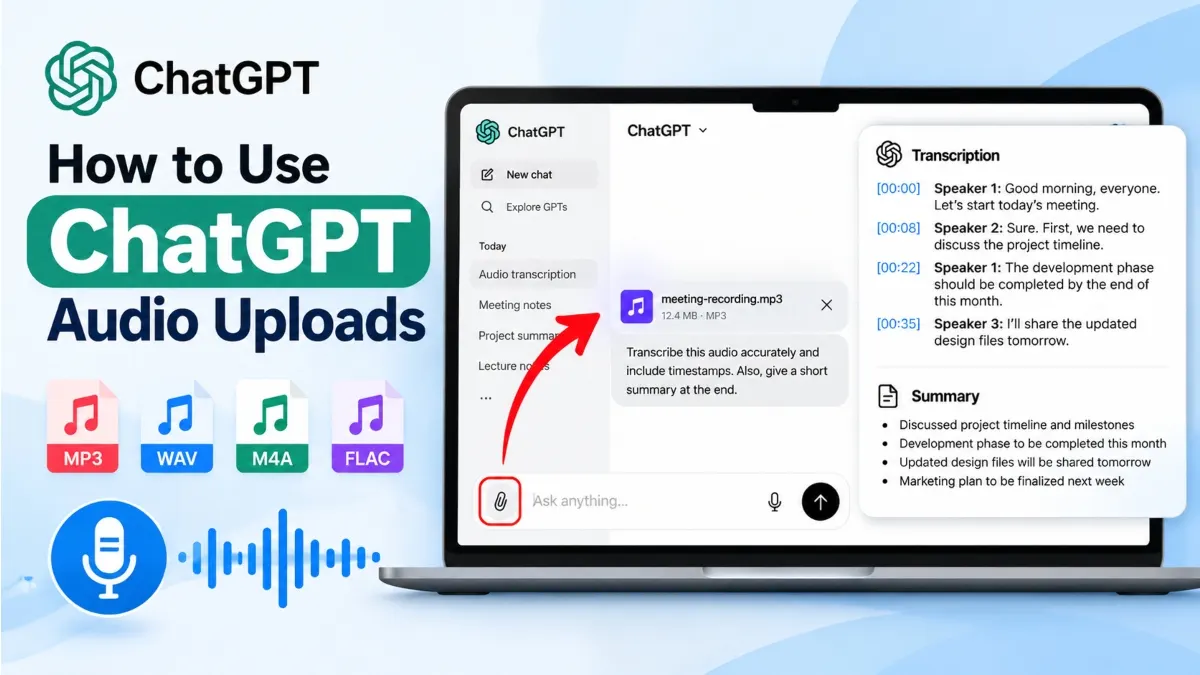
ChatGPT can work with supported audio files and turn recordings into useful text, summaries, notes, and answers. If you have an MP3, WAV, M4A, or another supported audio file, you can upload it to a ChatGPT conversation and ask ChatGPT to transcribe or analyze it. This guide explains how to use ChatGPT audio uploads, which formats are supported, how to get a transcript or summary, and what to do if an audio file will not upload.
Quick Answer
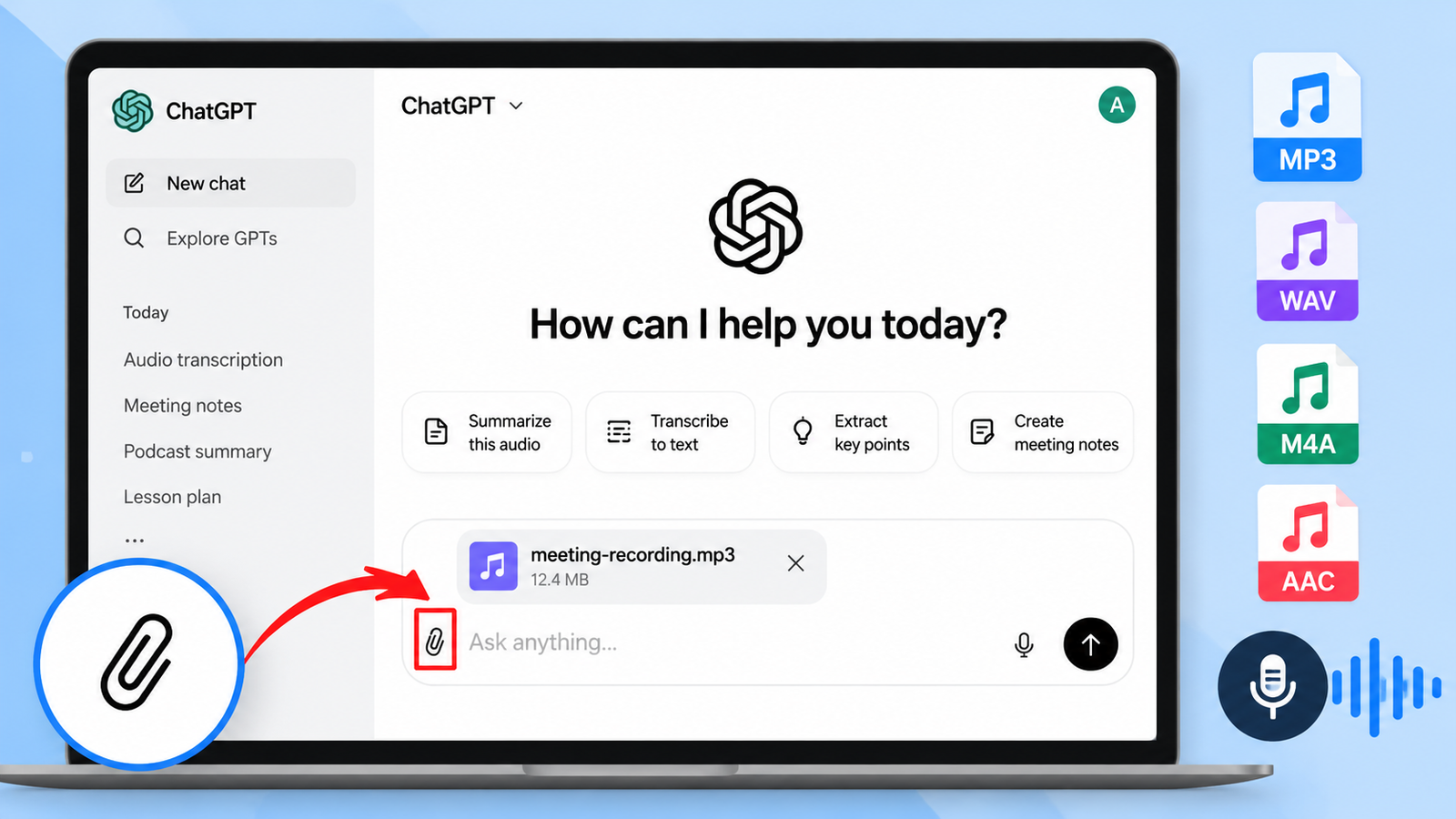
To use ChatGPT audio uploads, open a ChatGPT conversation, attach a supported audio file, and tell ChatGPT what you want it to do with the recording. For example, you can ask it to transcribe the audio, summarize the recording, extract important points, identify action items, or answer questions about what was said.
OpenAI currently lists WAV, MP3/MPEG, OGG/OGA, audio-only WebM, PCM, FLAC, AAC, M4A, and audio-only MP4 among the supported audio formats. Audio files can be up to 512 MB per file. Audio uploads are currently available with paid ChatGPT subscriptions and supported workspaces, rather than the Free plan.
How to Use ChatGPT Audio Uploads
Step 1: Open ChatGPT
- Open ChatGPT on the web or use a supported ChatGPT mobile app.
- Start a new conversation or open an existing conversation where you want to work with the recording.
- Make sure you are signed in to an account and plan that supports audio uploads.
Step 2: Attach the Audio File
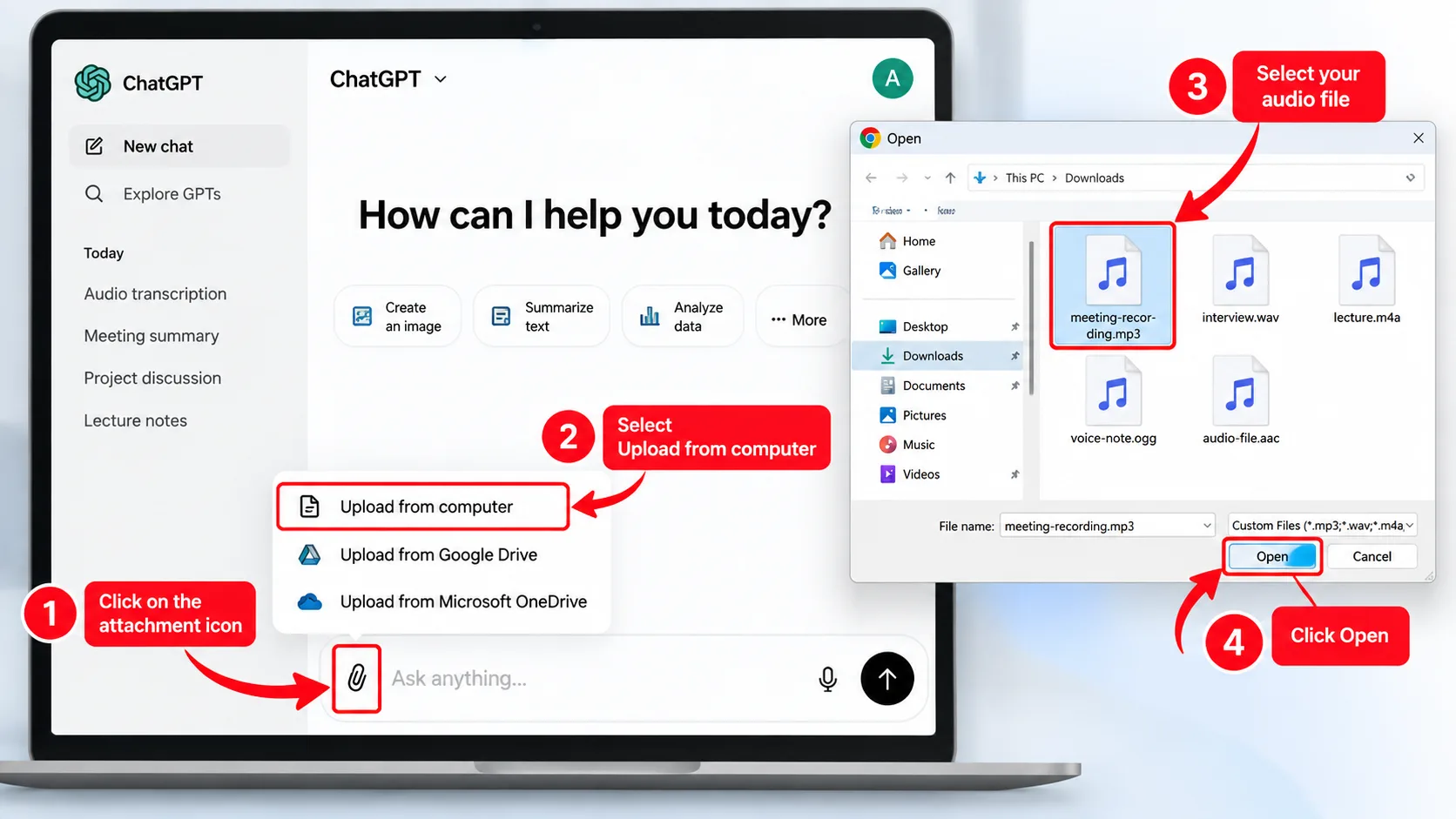
- Use the file attachment control in the message composer.
- Select the audio file from your computer or mobile device.
- Wait for the file to finish uploading before sending your request.
The exact appearance of the attachment control can vary between the web interface and mobile apps, so the button or menu name may not look identical on every device.
Step 3: Tell ChatGPT What You Want
Uploading the recording is only the first step. Give ChatGPT a specific instruction describing the result you want.
For example, you can write:
- “Transcribe this audio accurately and preserve the original meaning.”
- “Summarize this recording in five key points.”
- “Turn this meeting recording into structured notes.”
- “Extract all important decisions and action items from this recording.”
- “What did the speaker say about the project deadline?”
- “Create a short follow-up email based on this meeting.”
Step 4: Review the Result
ChatGPT can generate a transcript or work with the contents of the recording according to your instruction. However, audio transcription can contain mistakes, particularly when the recording has background noise, unclear speech, overlapping speakers, or language-related accuracy issues.
For important information such as names, numbers, dates, instructions, or business decisions, compare the generated transcript with the original recording before relying on it.
How to Get a Transcript From an Audio File
If your main goal is audio to text, upload the recording and explicitly request a transcript.
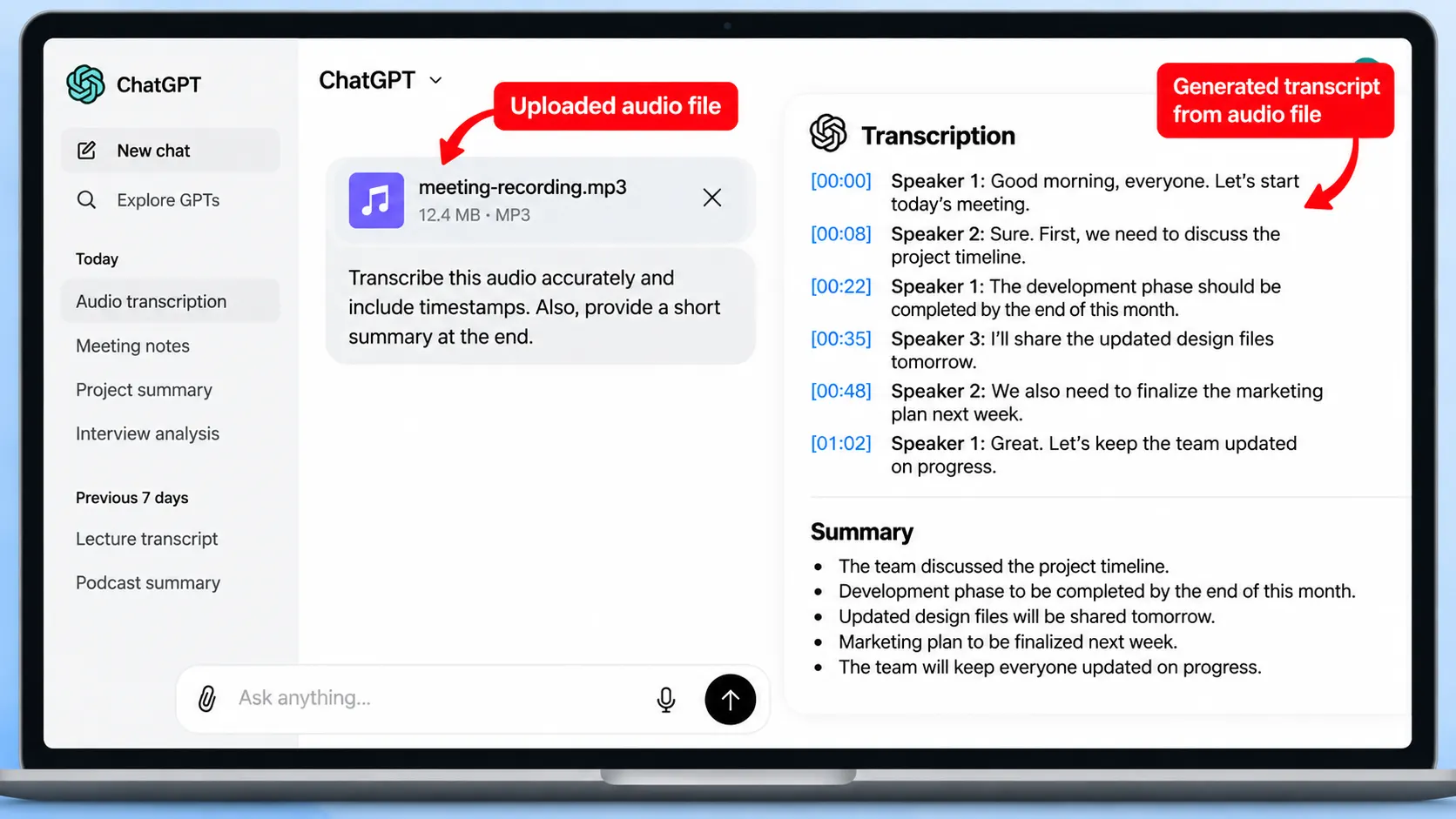
- Attach the supported audio file to a ChatGPT conversation.
- Ask ChatGPT to transcribe the entire recording.
- Specify whether you want timestamps, speaker labels, or another particular format if that information is useful for your task.
- Review the generated transcript for transcription errors.
You can then continue working with the transcript in the same conversation. For example, you can ask ChatGPT to shorten it, organize it into sections, extract important information, or turn it into another type of document.
Can ChatGPT Transcribe MP3 Files?
Yes. OpenAI currently lists MP3/MPEG as a supported audio format for ChatGPT audio uploads. The file must contain a valid, decodable audio stream.
After uploading an MP3, you can ask ChatGPT to transcribe the recording or perform other tasks based on its contents.
If an MP3 does not upload successfully, check the file size, confirm that it is a valid audio file, and make sure your account has access to audio uploads.
Which Audio Formats Does ChatGPT Support?
OpenAI currently lists the following audio formats for supported ChatGPT audio uploads:
| Audio format | Supported |
|---|---|
| MP3 / MPEG | Yes |
| WAV | Yes |
| OGG / OGA | Yes |
| Audio-only WebM | Yes |
| PCM | Yes |
| FLAC | Yes |
| AAC | Yes |
| M4A | Yes |
| Audio-only MP4 | Yes |
There is an important distinction with WebM and MP4 files. OpenAI states that files identified as video are not supported through audio uploads, so an audio-only file is different from a video file that happens to contain an audio track.
How to Use ChatGPT for Audio Summaries
You do not have to request a word-for-word transcript. ChatGPT can also work with an uploaded recording to produce a shorter summary.
- Upload the audio recording.
- Ask ChatGPT to summarize it.
- Specify the format you want, such as bullet points, meeting notes, or a short paragraph.
- Ask follow-up questions about specific parts of the recording.
For example, a meeting recording can be turned into a summary containing key decisions, unresolved questions, responsibilities, and next steps.
What Can You Do After Uploading Audio?
Once ChatGPT can work with the recording, you can use the audio content for more than transcription.
- Create a full or shortened transcript.
- Summarize a long recording.
- Extract important points.
- Find specific information mentioned in the recording.
- Turn a meeting into structured notes.
- Identify decisions and action items.
- Extract information from an interview or lecture.
- Rewrite the contents into an email or another document.
- Ask questions about what was discussed.
- Turn the recording into a project plan or other structured output.
ChatGPT Audio Uploads vs Record Mode
Audio uploads and ChatGPT Record are different features. Audio uploads are used when you already have an audio file that you want ChatGPT to analyze. Record Mode is designed to record and transcribe meetings, brainstorming sessions, and voice notes directly through ChatGPT.
| Feature | Audio Upload | ChatGPT Record |
|---|---|---|
| Use an existing audio file | Yes | Not its primary purpose |
| Transcribe audio | Yes | Yes |
| Summarize recordings | Yes | Yes |
| Record a meeting directly | No | Yes |
| Current desktop availability | Supported platforms vary by account | macOS desktop app |
How to Use ChatGPT Record Mode
ChatGPT Record is intended for capturing and summarizing meetings, brainstorming sessions, and voice notes. According to OpenAI’s current documentation, Record is available for Plus, Pro, Business, Enterprise, and Edu workspaces and is currently limited to the ChatGPT macOS desktop app.
Start a Recording
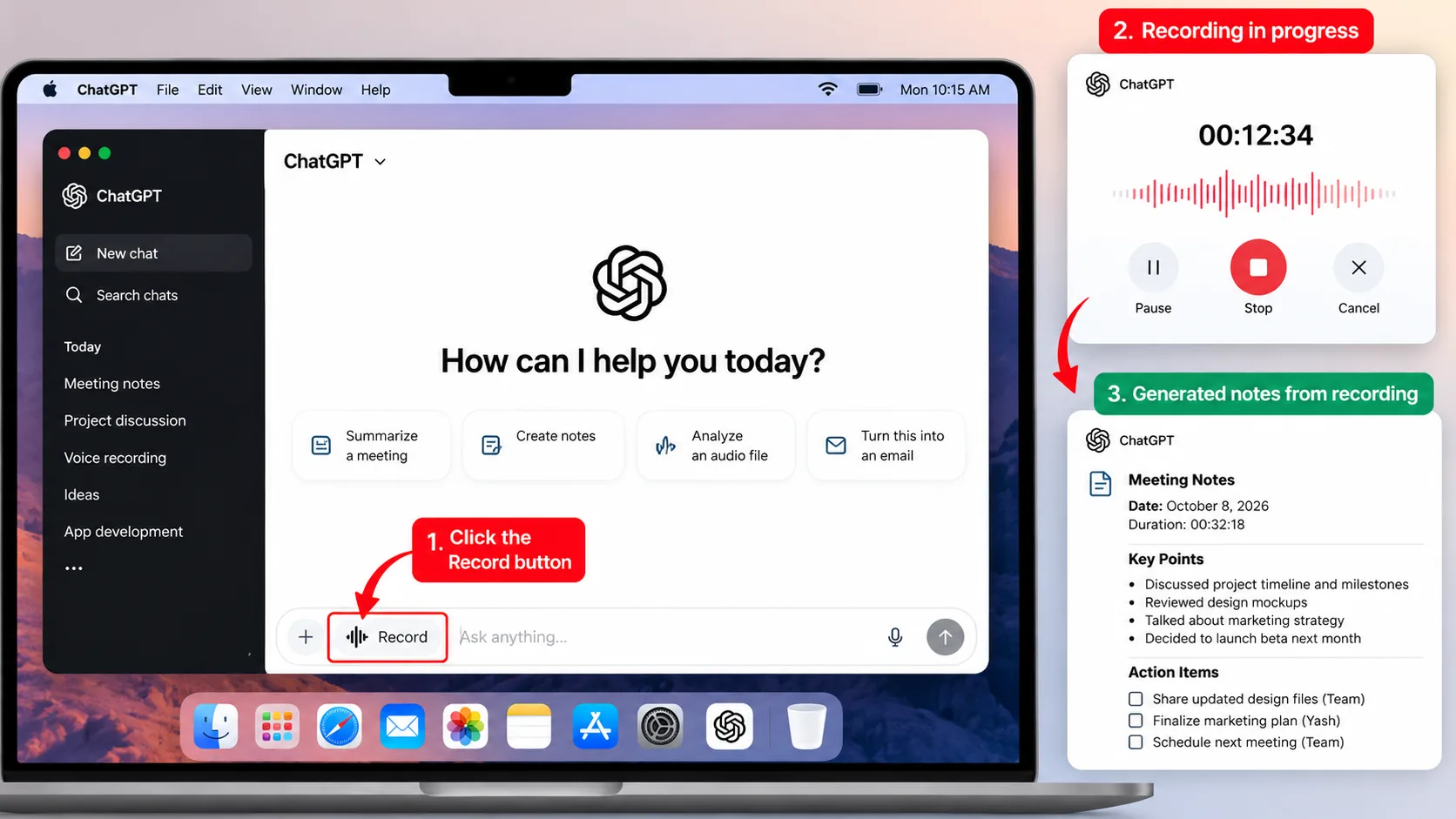
- Open the ChatGPT macOS desktop app.
- Open a chat.
- Select the Record button.
- Grant the required microphone or system-audio permissions if ChatGPT asks for them.
- Start speaking or conduct the meeting.
Record Mode can transcribe while you speak. When you finish, use the available control to stop the recording and send the recording for processing.
Turn the Recording Into Notes
After the recording is processed, ChatGPT can generate notes from the transcript. You can then ask it to turn those notes into a project plan, email, code-related output, or another format that fits your task.
Record Mode currently has a four-hour maximum recording length per session. Limits and availability can change over time.
Can ChatGPT Record Meetings and Transcribe Them?
Yes, but the answer depends on which ChatGPT feature you mean. ChatGPT Record can transcribe and summarize meetings, but OpenAI currently documents it as a macOS desktop feature for supported paid and workspace plans.
If you already have a meeting recording saved as an audio file, you can instead use the audio-upload workflow where audio uploads are available to your account.
When recording other people, make sure you have the appropriate consent and follow the laws that apply where the recording takes place.
Is ChatGPT Audio to Text Free?
Currently, OpenAI states that audio file uploads are not available on the Free plan. Audio uploads are available with supported paid ChatGPT subscriptions and workspaces.
This should not be confused with ChatGPT’s microphone-based dictation feature. Dictation converts a recorded audio message into text so that you can review and send it as a message. It is different from uploading an existing MP3 or other audio file for analysis.
Why Is the ChatGPT Record Button Missing?
If you cannot find the Record button, do not assume that the feature has been removed from your account.
OpenAI currently says Record is available only in the ChatGPT macOS desktop app and for supported Plus, Pro, Business, Enterprise, and Edu workspaces.
Try these checks:
- Confirm that you are using the ChatGPT macOS desktop app rather than the web version or a mobile app.
- Update the ChatGPT macOS app to the latest version.
- Confirm that you are signed in to a supported plan or workspace.
- Check whether ChatGPT has the required microphone and system-audio permissions.
- If you are using an Enterprise or Edu workspace, check whether Record has been enabled by the workspace administrator.
If you are on Windows, Android, iPhone, or the web and are looking for Record Mode specifically, its current documented availability does not mean that the feature should appear there.
What to Do if an Audio File Will Not Upload
Check the File Format
First, confirm that the recording uses one of the supported audio formats. MP3, WAV, M4A, AAC, FLAC, OGG/OGA, PCM, audio-only WebM, and audio-only MP4 are currently listed by OpenAI.
Check the File Size
Audio uploads have a 512 MB per-file limit. If your recording is larger, reduce the file size or divide the recording into smaller files before uploading.
Check Your Account and Upload Limits
Audio uploads are currently restricted to supported paid ChatGPT subscriptions and workspaces. Upload limits and account settings can also affect whether a file can be attached successfully.
Check Whether the File Is Actually Audio
A file may have an audio-related extension but still contain an invalid or unsupported stream. OpenAI states that the file must contain a valid, decodable audio stream.
Try Again Later
If the format, size, and account access are correct but uploading still fails, the issue may be related to an upload limit or service problem. Check ChatGPT’s current service status before repeatedly attempting the same upload.
Common Mistakes to Avoid
- Assuming that every ChatGPT plan supports audio file uploads.
- Confusing ChatGPT Record with ordinary audio file uploads.
- Using a video file when an audio-only upload is required.
- Uploading a file larger than the current size limit.
- Assuming that an automatically generated transcript is always perfect.
- Relying on a transcript for important names, numbers, dates, or decisions without checking the original recording.
- Expecting Record Mode to appear on platforms where OpenAI does not currently document it as available.
How to Get Better Audio Transcription Results
Audio quality can affect transcription quality. For the best practical results, use a recording with clear speech and as little background noise or overlapping conversation as possible.
If several people are speaking, make the request more specific. For example, ask ChatGPT to organize the transcript by speaker when appropriate. However, speaker identification may not always be reliable, so important information should still be reviewed against the recording.
For non-English recordings, accuracy can vary by language. OpenAI specifically notes that audio understanding and transcription performance may vary across languages.
Frequently Asked Questions
Can ChatGPT transcribe an MP3?
Yes. MP3/MPEG is currently listed as a supported audio format for ChatGPT audio uploads. After attaching the file, ask ChatGPT to transcribe or analyze the recording.
Can ChatGPT take notes from an audio recording?
Yes. You can ask ChatGPT to turn an uploaded recording into structured notes, summaries, key points, decisions, or action items.
Can ChatGPT transcribe audio for free?
Audio file uploads are currently not available on the Free plan. Supported paid ChatGPT subscriptions and workspaces can use audio uploads, subject to applicable limits.
Why can’t I see ChatGPT Record on my phone?
OpenAI currently documents ChatGPT Record as a feature available in the macOS desktop app. Therefore, its absence from the Android or iPhone app does not necessarily indicate a problem with your account.
Can I ask questions about an uploaded recording?
Yes. After ChatGPT processes a supported audio file, you can ask questions about information contained in the recording, request specific details, or transform the content into another format.
Final Takeaway
ChatGPT audio uploads are useful when you already have a recording and want to turn it into a transcript, summary, notes, or searchable information. The current supported formats include common options such as MP3, WAV, M4A, AAC, FLAC, and OGG/OGA, with a 512 MB per-file limit.
The most important distinction is between audio uploads and ChatGPT Record. Audio uploads work with an existing supported recording, while Record Mode is designed to capture and summarize recordings directly and is currently documented for the macOS desktop app on supported plans.
Because transcription can contain errors and ChatGPT’s interface and availability can change, check important information against the original recording and consult OpenAI’s current documentation when a feature or upload option is unavailable.




Join Our Community
Stay connected and get the latest AI prompts, tools and tech tips.
Related Latest Posts
Free AI Video Generator: Best Tools to Try in 2026
Android October 2026 Google Play System Update: How to Check
15 Halloween AI Photo Prompts for Gemini & ChatGPT (2026)
How to Free Up Storage on iPhone: 10 Easy Ways