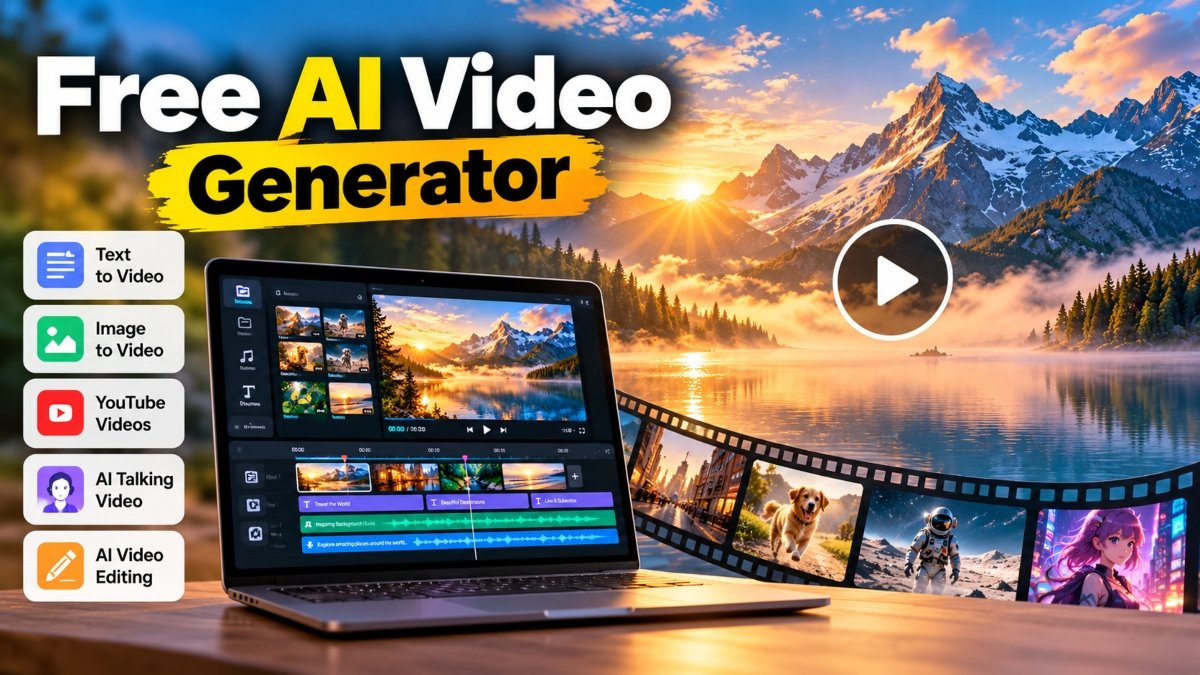
A free AI video generator can help you turn text prompts, images, and creative ideas into videos without learning complex editing software. However, not every tool offers the same features for free. Some provide limited generation credits, while others restrict access to advanced AI models, add watermarks, or require a paid subscription.
This guide compares popular AI video generation tools, explains how to create videos from text and images, and shows you how to choose a suitable option for YouTube, social media, marketing, and personal projects. You will also find a ready-to-use video prompt and practical tips for getting better results without wasting generation credits.
Best Free AI Video Generators at a Glance
The best free AI video generator depends on whether you want cinematic clips, animated images, narrated videos, or a complete video assembled from a script. The following tools serve different purposes, so check their current free access conditions before starting a project.
| AI tool | Best use | Free access considerations |
|---|---|---|
| Google Flow | AI filmmaking and cinematic scenes | Official documentation lists daily credits for subscribers and non-subscribers. Video generation may be restricted during peak hours. |
| Google Gemini | Generating videos from text and visual inputs | Video generation requires an eligible Google AI plan for personal accounts or a qualifying Workspace license. |
| CapCut | Social media videos and editing | Some editing and export workflows are free, but individual AI features and premium assets may have separate restrictions. |
| InVideo AI | Script-based videos and explainers | Free-plan access is limited. Its official pricing and help information should be checked for the specific generation feature you intend to use. |
| Freepik AI Video Generator | Creative clips using different AI models | Model access and generation credits depend on the available plan. Do not assume that every video model is free. |
| Grok Imagine | Experimental AI-generated video content | Current free access, generation limits, and account requirements should be verified before relying on it for a regular workflow. |
Important: Free access can change over time and may differ by country, account, or subscription. A free video editor is not necessarily a free AI video generator, and a tool that lets you generate a clip may still restrict downloading or commercial use.
1. Google Flow: For Cinematic AI Video Creation
Google Flow is an AI filmmaking tool designed to help users create and develop visual scenes. It is worth considering when you want more control over the creative process than a simple template-based video maker provides.
Google’s official Flow documentation lists 50 Flow credits per day for non-subscribers and additional monthly credits for eligible paid plans. However, video generation may be unavailable to non-subscribers during peak hours. Credit costs also depend on the model used.
Best for: Cinematic scenes, creative storytelling, and AI-assisted filmmaking.
How to get started:
- Open the official Google Flow website and sign in if required.
- Check the available generation options and current credit balance.
- Describe the scene, subject movement, camera behavior, and lighting you want.
- Generate a clip if the required model and feature are available to your account.
- Review the result and refine the prompt before spending credits on another generation.
Limitation: Free credits do not guarantee unrestricted video generation. Availability may depend on demand, the selected model, and current account eligibility.
2. Google Gemini: For Prompt-Based Video Generation
Google Gemini provides video-generation capabilities for eligible accounts. It is useful for people who prefer describing a scene in natural language instead of working with complicated editing controls.
According to Google’s official help documentation, personal-account video generation requires a Google AI plan, while work or school accounts need a qualifying Workspace license. Therefore, Gemini should not be presented as a universally free AI video generator.
Best for: Users who already have eligible Gemini access and want to create videos from text or visual inputs.
How to use it:
- Open Gemini and sign in with an eligible account.
- Check whether video generation is available to your account.
- Describe the subject, environment, action, camera movement, and visual style.
- Generate the video using the available video-generation feature.
- Review the result for visual inconsistencies and refine the request if necessary.
Limitation: Access depends on your plan and eligibility. Check the current official requirements before choosing Gemini specifically for free video creation.
3. CapCut: For Social Media Videos and Editing
CapCut combines video editing with AI-assisted creation features. It can be useful for creators who want to develop social media content, add captions, arrange scenes, adjust pacing, and prepare videos for publishing.
CapCut also documents ways to export videos without a watermark in supported editing workflows. For example, an automatically added branded ending can often be removed before export. However, some templates, effects, and other assets may have separate restrictions.
Best for: YouTube Shorts, TikTok videos, Instagram Reels, promotional clips, and editing AI-generated footage.
How to use it:
- Open CapCut on a supported device or through its available online editor.
- Choose a suitable AI creation feature if it is available to your account, or start a standard editing project.
- Add your generated clips, images, narration, and other media.
- Adjust the scene order, timing, captions, and audio.
- Check the timeline for branded ending clips or restricted assets before exporting.
Limitation: Free editing does not mean every AI generation feature, template, or export option is included. Check the requirements for the exact feature you want to use.
4. InVideo AI: For Script-Based Videos
InVideo AI is designed to help users turn ideas and scripts into structured videos. It may be suitable for explainers, educational content, marketing videos, and narrated presentations.
Its free-plan information requires careful checking. InVideo’s official help center describes limited free access, while its published pricing information has also listed restrictions on generative features and exports. These differences mean you should verify the current terms shown for your account before planning a project around a specific feature.
Best for: Script-based content, explainers, and video projects that benefit from an AI-assisted production workflow.
Suggested workflow:
- Open InVideo AI and review the available free-plan features.
- Prepare a short script with a clear beginning, middle, and ending.
- Enter your instructions if the required AI video creation feature is available.
- Review the generated scenes, narration, and visual choices.
- Check export limits, watermark requirements, and usage rights before publishing.
Limitation: Do not assume that a free account includes unlimited AI generation or unrestricted watermark-free downloads.
5. Freepik AI Video Generator: For Creative Video Experiments
Freepik AI Video Generator, available through the Freepik platform, offers video creation using supported AI models. It can be relevant to designers and creators who want to experiment with different visual approaches.
However, model availability, credits, output options, and commercial-use terms depend on the current plan and selected feature. Freepik’s published pricing information lists paid plans with allocated credits, so users should not assume that all video-generation models are available without payment.
Best for: Designers, marketers, and visual creators comparing different AI video-generation approaches.
Suggested workflow:
- Open the official Freepik AI video page.
- Check the currently available models and plan requirements.
- Enter a scene description or provide a suitable reference image if the selected model supports it.
- Review the credit cost before generating the clip.
- Check the output and licensing terms before using it in a commercial project.
Limitation: Free access to the platform does not automatically mean free access to every model or generation setting.
How to Choose the Right Free AI Video Generator
Before selecting a tool, decide what kind of video you want to create. This helps you avoid spending time signing up for services that do not support your intended workflow.
| Your goal | What to look for |
|---|---|
| Create a video from text | A text-to-video model that accepts natural-language scene descriptions. |
| Animate a still image | An image-to-video feature that accepts reference images and supports the desired motion. |
| Create YouTube Shorts | Suitable aspect ratios, short-scene generation, and an editor for captions and audio. |
| Produce a talking presenter | An avatar or talking-head tool with appropriate speech and audio features. |
| Export without a watermark | Explicitly documented watermark-free export conditions for the chosen plan. |
| Create videos without signing up | A service that officially permits generation and export without an account. |
| Use videos commercially | Clear commercial-use terms covering the model, plan, generated content, and included assets. |
There is no single best free AI video generator for every situation. A cinematic generation tool may be ideal for short visual scenes, while an editor may be more useful for assembling a complete YouTube video.
Ready-to-Copy Free AI Video Generator Prompt
A clear prompt can help an AI video generator understand what should appear in a scene and how the scene should move. The following example is designed for a short cinematic nature clip. Adapt it to your subject and the capabilities of your chosen tool.
Copy-ready video prompt:
Create a cinematic video showing a peaceful mountain lake at sunrise. Soft golden sunlight gradually illuminates the surrounding mountains while a thin layer of mist moves slowly across the water. Small ripples travel naturally across the lake, and nearby pine trees move gently in the breeze.
Use a wide establishing shot with a slow, smooth forward camera movement. Maintain realistic lighting, natural colors, atmospheric depth, and believable environmental motion. Keep the main landscape composition visually consistent throughout the shot.
Use a calm, cinematic nature-documentary style with detailed scenery and smooth motion. Avoid sudden camera movements, rapid scene changes, excessive visual effects, distorted landscape features, and unrelated objects entering the frame.
Generate a short clip using the duration and aspect ratio supported by the selected tool. Prioritize natural movement and visual consistency over unnecessary effects.
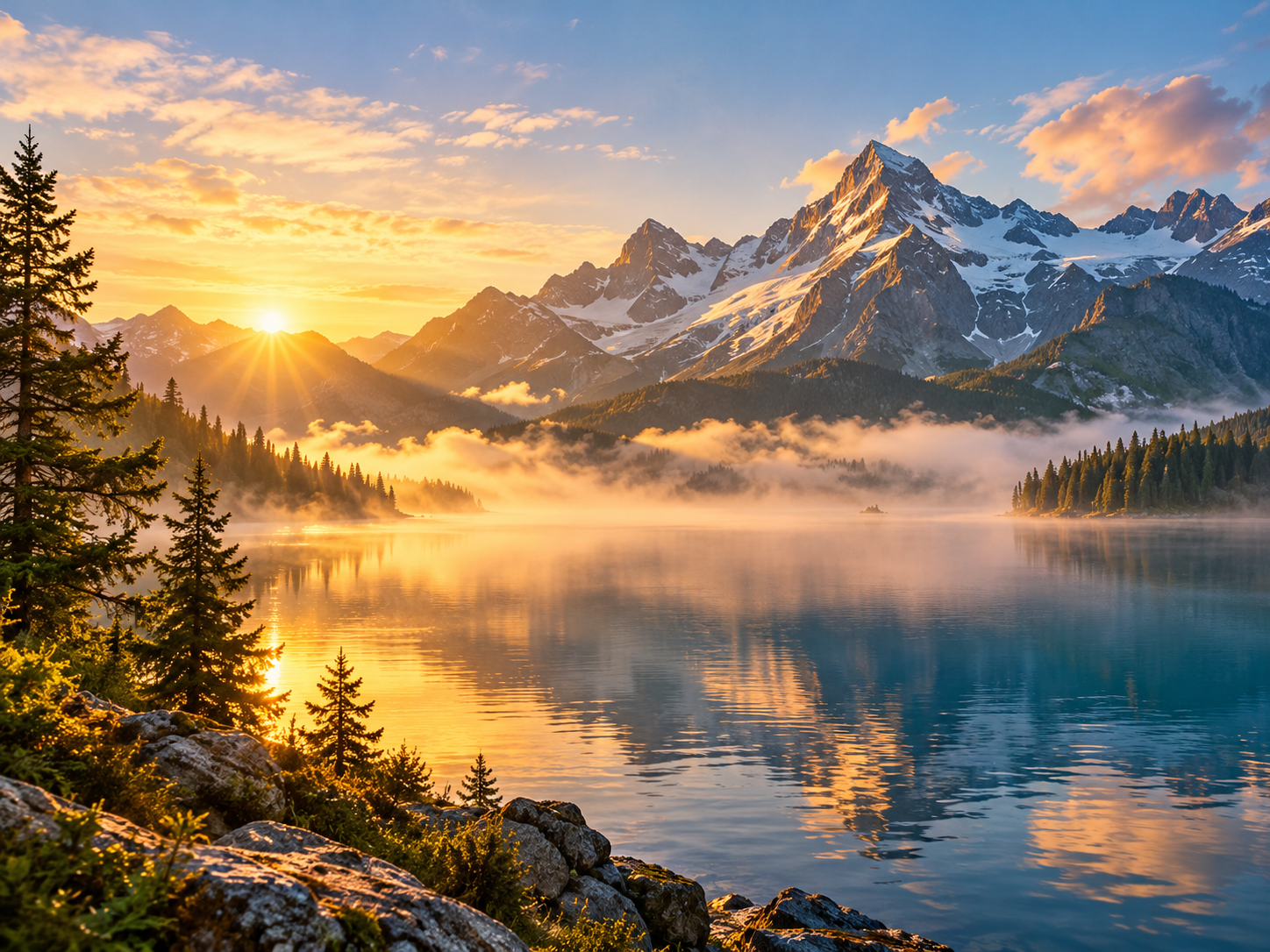
Replace the mountain lake with your subject, such as a product, city street, character, animal, or travel destination. Change the camera movement and lighting to match the scene. The prompt provides guidance rather than a guarantee of a specific result.
How to Generate a Video From Text Using AI
A text-to-video generator converts a written description into a video clip. The model interprets your prompt and attempts to create the scene, motion, and visual style you describe.
- Choose a suitable tool. Select a video generator that supports text-to-video and offers access under your current plan.
- Define the scene. Identify the subject, location, action, and intended mood before writing the prompt.
- Describe the movement. Explain what the subject does and how the camera should move. For example, a person walks slowly toward a doorway while the camera follows from behind.
- Specify the visual style. Mention realistic footage, animation, a cinematic look, or another style appropriate for the project.
- Generate a clip. Use the available controls and check the credit cost before starting if the service uses credits.
- Review the output. Look for unnatural movement, inconsistent objects, unwanted scene changes, and visual defects.
- Refine one instruction at a time. If the result is too busy, simplify the scene or clarify the movement rather than rewriting every part of the prompt.
- Edit and export. Assemble suitable clips, add narration or captions if needed, and verify the final export requirements.
How to Create an AI Video From an Image
An image-to-video generator uses an image as a visual starting point and attempts to animate it. This can be useful for product shots, landscapes, illustrations, character scenes, and social media visuals.
- Prepare your image. Choose a clear image with a subject and background that are easy to understand.
- Open an image-to-video tool. Confirm that the selected model accepts uploaded reference images.
- Upload the image. Use an image you own or have permission to use.
- Describe the desired motion. For example, ask for leaves to move gently, clouds to drift slowly, or a camera to move toward the subject.
- Explain what should stay consistent. Tell the model to preserve the main composition, subject appearance, and background where possible.
- Generate and inspect the clip. Check whether the subject, proportions, lighting, and important details remain reasonably consistent.
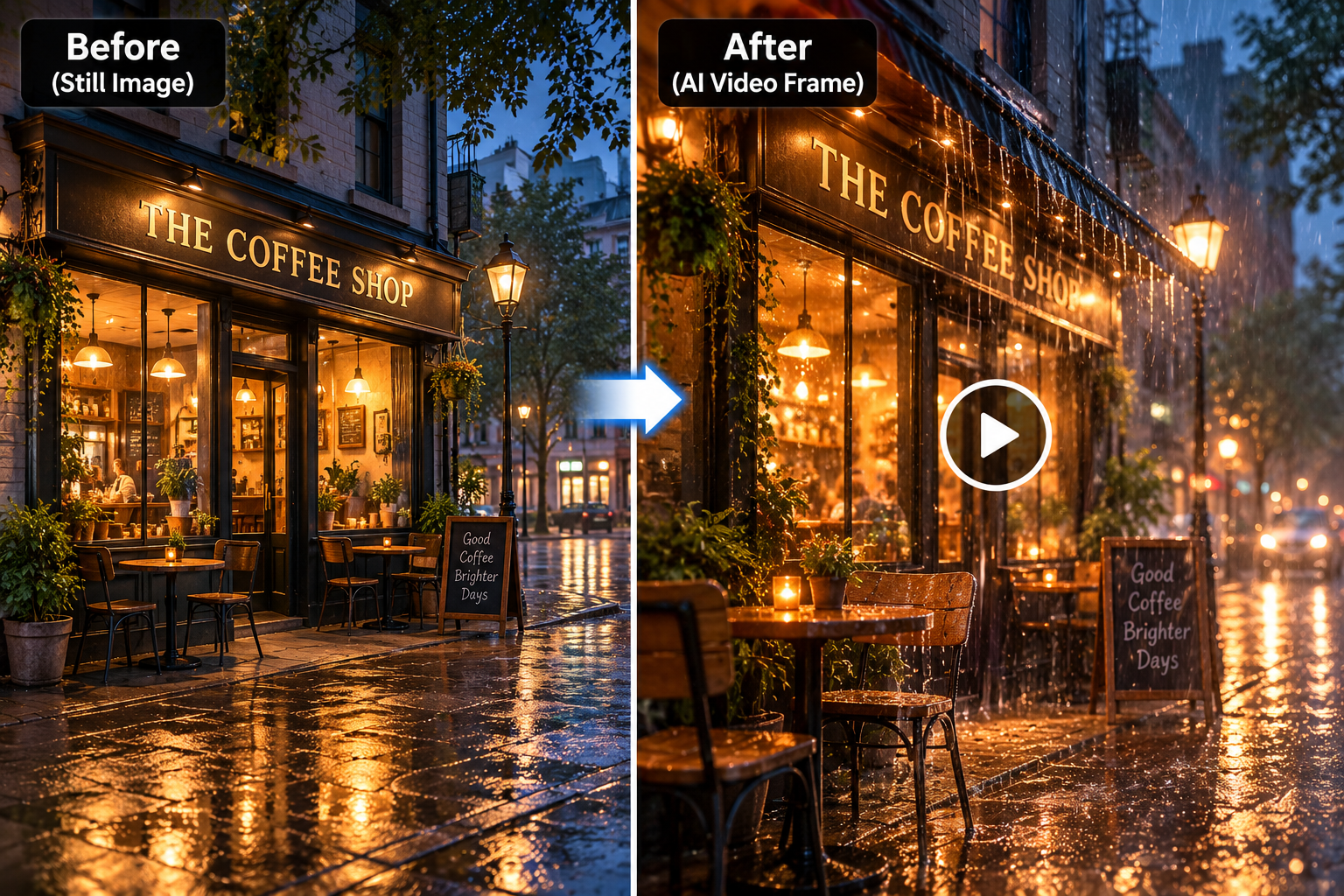
Animate the uploaded photograph of a small coffee shop on a rainy evening. Let raindrops move naturally down the window while warm light glows inside. Use a slow, subtle camera push toward the shop entrance. Preserve the overall composition, storefront design, and existing color palette. Avoid introducing new people, changing the shop sign, or making abrupt camera movements.
Reference-image instructions can guide the generation, but they do not guarantee exact preservation. Some models may alter faces, product details, text, or other elements during animation.
Can You Find a Free AI Video Generator Without Watermarks?
Some tools support watermark-free exports under certain conditions, but there is no reliable basis for claiming that every free AI video generator offers this option.
Check these details before choosing a service:
- Export policy: Confirm whether the free plan allows downloading the generated video without branding.
- Template restrictions: Some editors add a branded ending clip or restrict certain premium templates.
- AI generation restrictions: A tool may allow free editing while limiting AI-generated clips to a paid plan.
- Resolution limits: Higher-resolution exports may require a different subscription.
- Credit limits: Free credits may restrict how many generations you can make.
For CapCut, its official help documentation explains how users can remove certain branded ending clips and avoid assets that introduce watermarks. This is useful for editing, but it should not be interpreted as proof that every CapCut AI generation feature is free.
Are There Free AI Video Generators Without Login?
Some browser-based services may let visitors try limited generation features without creating an account, but access and export requirements vary. This information could not be verified from an official source for a universally available, unrestricted AI video generator that works without login.
If account-free access is essential, check the service’s official instructions before uploading files or spending time preparing a project. Confirm whether you can generate, preview, and download the final video without registration.
Avoid uploading private photos, confidential documents, or client material to an unfamiliar service simply because it advertises free access. Review its privacy policy and understand how uploaded content may be handled.
How to Create YouTube Videos With Free AI Tools
You can use AI video generators as part of a YouTube production workflow, but a complete video often requires more than generating individual clips. You may also need a script, narration, background music, captions, transitions, and editing.
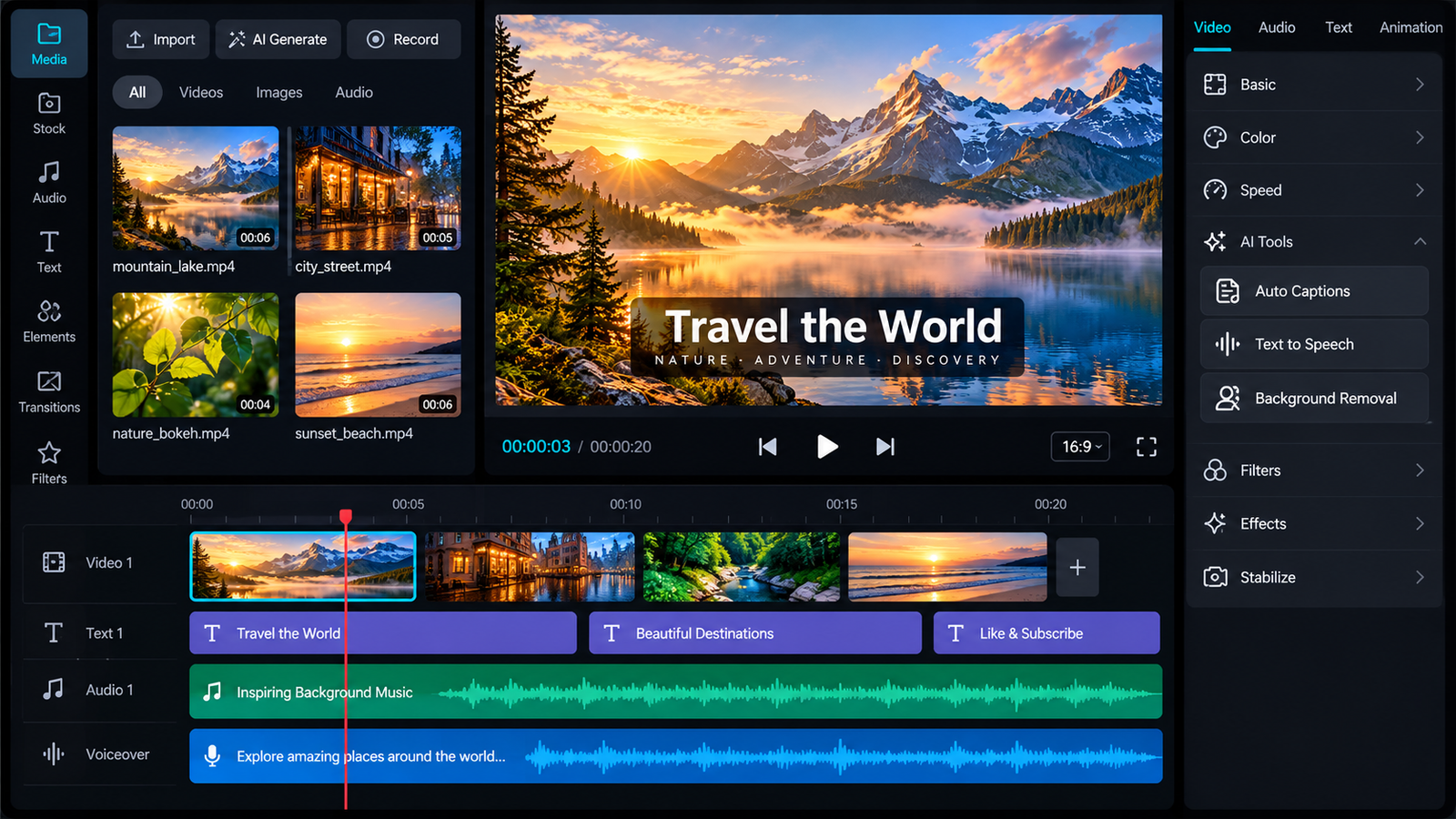
- Write a short script. Organize the video into an opening, main points, and a clear conclusion.
- Divide the script into scenes. Give each scene one main visual idea rather than asking a video model to create an entire complex production in one step.
- Generate the visual clips. Use text-to-video or image-to-video features that suit the topic.
- Create narration if needed. Use your own voice or a suitable audio tool, following its usage terms.
- Assemble the video. Arrange clips in a video editor and remove sections that do not support the message.
- Add captions and audio. Check spelling, timing, volume, and any licensing requirements for music or stock media.
- Review the final result. Check factual claims, visual errors, pacing, export quality, and platform requirements before publishing.
For Shorts and other vertical videos, choose a portrait format when supported by the generator or editor. For conventional YouTube videos, a landscape format is usually more appropriate. Always check the current output options of the selected tool.
AI-generated content is not automatically suitable for monetization or free of copyright concerns. Review YouTube’s current policies, the tool’s commercial-use terms, and any applicable disclosure requirements before publishing.
Common Problems With Free AI Video Generators
The video does not match the prompt
Reduce the number of competing actions in the scene. Describe one main subject, one primary action, and a simple camera movement. Clearer instructions can help, although results still vary by model.
The subject changes during the video
Use a simpler scene and explicitly describe the details that should remain consistent. If the tool supports reference images or other consistency controls, use them where appropriate. These instructions cannot guarantee perfect identity or object preservation.
The free generation limit is exhausted
Check the account’s remaining credits and the cost of each generation. Test a concise prompt before making several variations, and compare alternative tools only after verifying their current free-access conditions.
The export contains a watermark
Review the export settings, timeline, template assets, and current plan restrictions. If the watermark comes from a branded ending clip, remove that clip when permitted. If the restriction is tied to a paid feature, use an eligible alternative rather than assuming that the watermark can always be removed.
A feature is missing from the interface
Check the official help center for account eligibility, regional availability, supported devices, and plan requirements. Features may differ between mobile, desktop, and browser versions.
Tips for Getting Better AI-Generated Videos
- Start with a clear objective. Decide whether the clip should explain something, tell a story, demonstrate a product, or create a particular mood.
- Use specific movement instructions. Describe how the subject moves and whether the camera stays still, pans, or follows the action.
- Avoid contradictory directions. Do not request both a completely static camera and a rapid moving-camera shot in the same scene unless the intended sequence is clearly explained.
- Keep scenes manageable. Complicated scenes with many moving subjects can be harder to generate consistently.
- Refine prompts gradually. Change one major instruction at a time so you can identify what affects the result.
- Review every clip. Check for distorted objects, inconsistent motion, unwanted text, and unexpected changes.
- Check rights before publishing. Verify commercial-use terms for the generated content, reference images, music, and other assets.
Final Recommendation
The best free AI video generator is the one that supports your intended workflow within the limits you can accept. Google Flow is worth exploring for AI filmmaking, eligible Gemini users can access its video-generation features, and CapCut is useful for editing and preparing social media videos. InVideo AI and Freepik offer additional workflows, but their current plan restrictions should be checked before you commit to a project.
If your priority is a free AI video generator from text, focus on text-to-video support and generation credits. If you want to animate a photograph, confirm that the selected tool supports image-to-video input. If you need a free AI video generator without a watermark or login, verify those conditions separately rather than relying on marketing claims.
Start with a simple scene, use a clear prompt, review the output carefully, and check the terms before publishing. This approach helps you make better use of limited free access without expecting every AI video tool to provide unlimited features.



Join Our Community
Stay connected and get the latest AI prompts, tools and tech tips.
Related Latest Posts
Free AI Video Generator: Best Tools to Try in 2026
Android October 2026 Google Play System Update: How to Check
15 Halloween AI Photo Prompts for Gemini & ChatGPT (2026)
How to Free Up Storage on iPhone: 10 Easy Ways