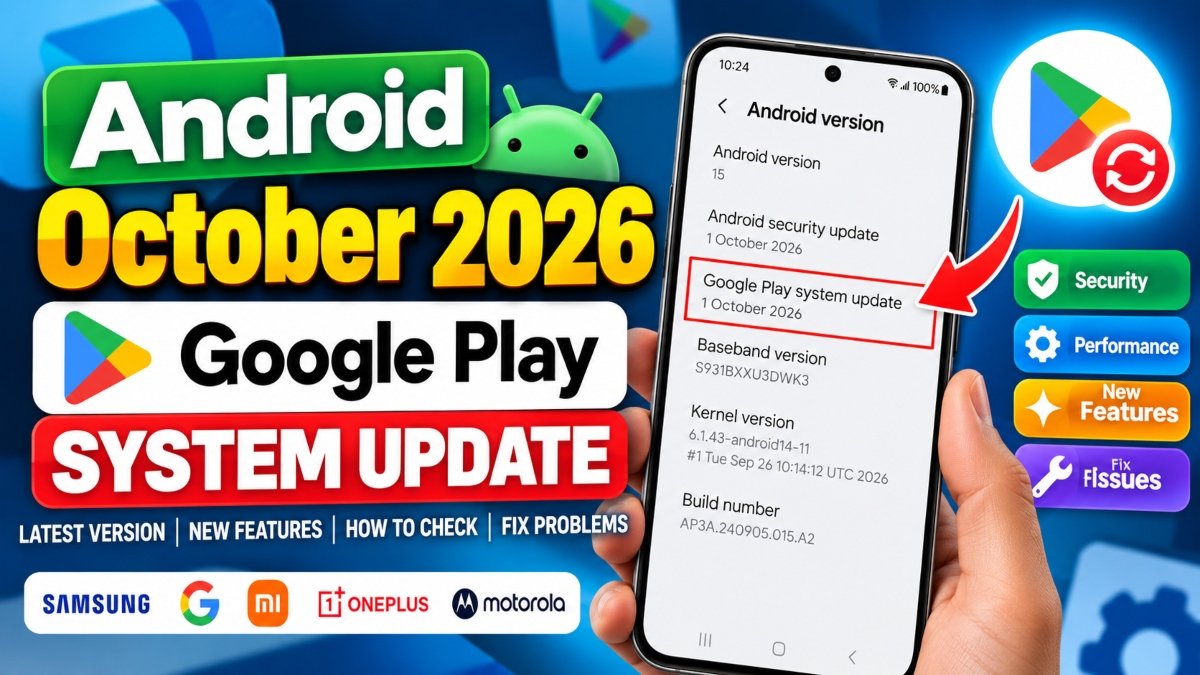
The Android October 2026 Google Play system update brings changes to Google’s system services, app distribution, security-related components, and device functionality. However, the latest published Google release notes do not mean every Android phone has already received every update. Your available version depends on your device, software configuration, and Google’s rollout schedule.
If you use a Samsung Galaxy, Google Pixel, Xiaomi, Redmi, OnePlus, Motorola, or another Android device, this guide explains how to check your Google Play system update date, install available updates, understand the October 2026 release notes, and troubleshoot missing or stuck updates.
Quick Answer: What Is the Android October 2026 Google Play System Update?
Google’s official system services release notes list several October 2026 updates. As of October 13, 2026, the latest entries include Google Play services version 26.40, dated October 12, Google Play Store version 53.6, also dated October 12, and Android WebView version 156, dated October 7.
These are separate component releases, not a single version number for the Android Google Play system update. Google publishes component-specific release notes, and availability can vary by device.
- Open your Android phone’s Settings.
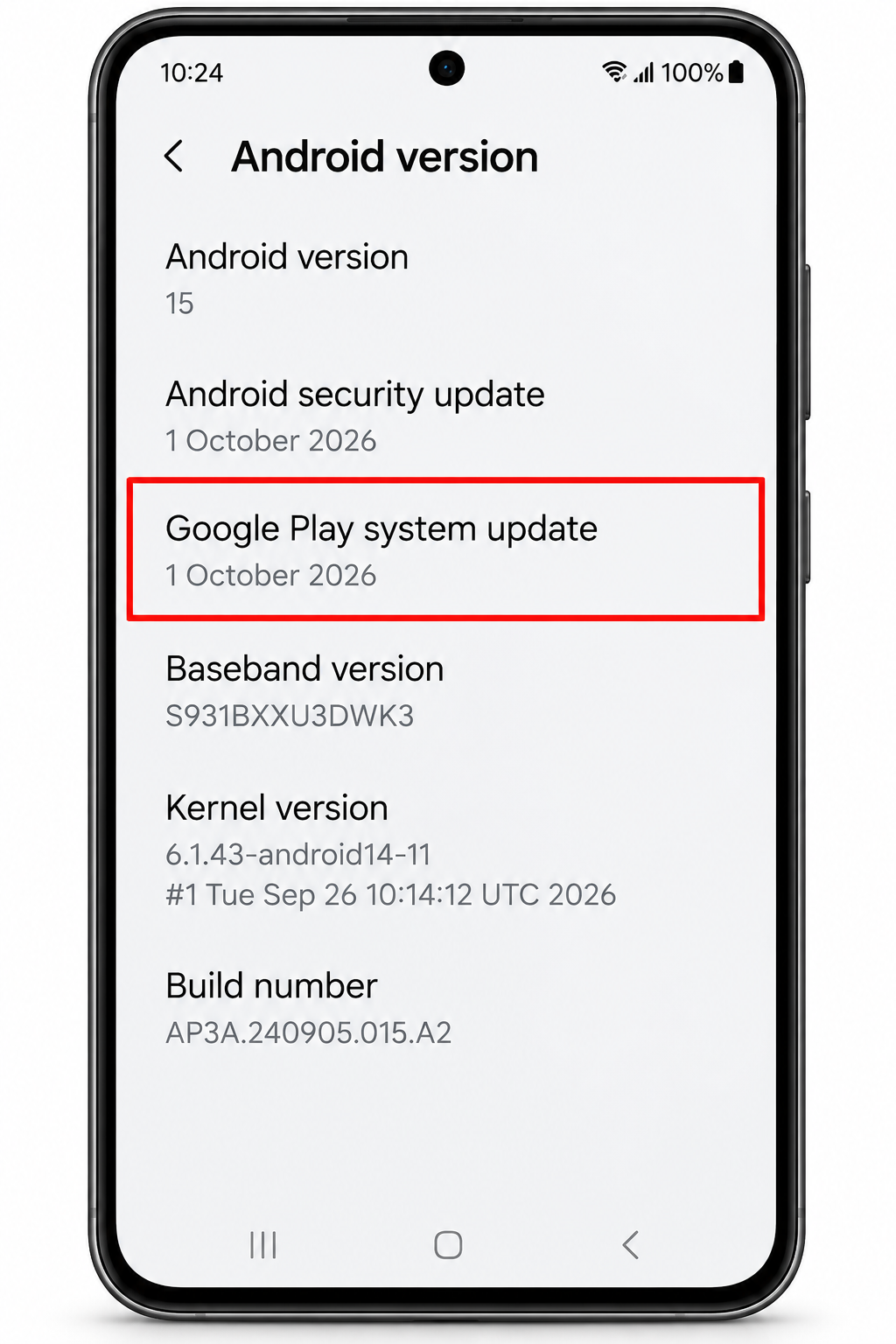
- Open About phone or About tablet, then select Android version to check your current Google Play system update date.
- Return to Settings and look for Security and privacy, System and updates, or the Google Play system update option. The exact path varies by device.
- Tap Google Play system update, if available, and follow the on-screen instructions.
- Restart your phone if prompted, then check the displayed update date again.
Do not assume that a phone is missing a critical update simply because its displayed date is older than October 2026. First check for available updates and compare the installed components with the official release notes.
Android October 2026 Google Play System Update: Latest Confirmed Release Notes
Google’s official release notes describe updates to individual services throughout the month. The following information reflects the published entries available as of October 13, 2026.
Google Play services version 26.40 – October 12, 2026
This release includes updates to system-management services intended to improve update delivery, device connectivity, performance, and stability across supported device categories.
Google also lists several Google Wallet improvements for phones, including the ability to scan receipts to add them, improved merchant names in transaction notifications, and an in-app message centre. Google Pay on Chrome for Android also receives a payment-flow change for certain interactions with merchants.
These release notes describe component-level changes. They do not establish that every feature is immediately available on every Android phone.
Google Play Store version 53.6 – October 12, 2026
The October 12 Play Store release notes list the following changes for phones:
- Ask Play: Summarised insights and direct citations from real user reviews to help answer questions about apps.
- Collections: New tag chips make it easier to filter and discover specific content types in the Listen collection.
- Community posts: AI-generated summaries help users catch up on discussions and open the original posts.
- Subscription discovery: Users can find content from installed apps with an active subscription in the subscription centre.
These are Google Play Store changes rather than proof that the Android operating system itself has been upgraded.
Android WebView version 156 – October 7, 2026
Google’s release notes list security and privacy improvements, bug fixes, and developer features for displaying web content inside Android apps. The release also introduces an API that lets developers selectively allow certain cross-origin isolated features for trusted origins.
WebView is a system component used by apps to display web content. Its version is separate from the Google Play system update date shown in Android Settings.
Other October 2026 updates
Google’s October release notes also list Google Play services version 26.39, dated October 5, and Google Play Store version 53.5, dated October 5. The earlier entries include developer-service changes, security and privacy improvements, and Google Wallet functionality.
The October 5 Play Store notes also mention an AI label for AI-generated images in India, subject to stated exceptions. Google lists Android System Intelligence maintenance changes dated October 1.
For the full component-by-component changelog, consult the Google System Services Release Notes in the official sources section below.
How to Download and Install the Google Play System Update
You generally do not need to download a separate APK to install a Google Play system update. Use the update mechanism provided by Android Settings and install only updates offered for your device.
Method 1: Check for a Google Play system update
- Connect your phone to a reliable Wi-Fi network.
- Open Settings.
- Tap About phone or About tablet.
- Open Android version and locate the Google Play system update entry. Note the displayed date.
- Return to the main Settings screen. Look for Security and privacy, System and updates, or a similarly named update section.
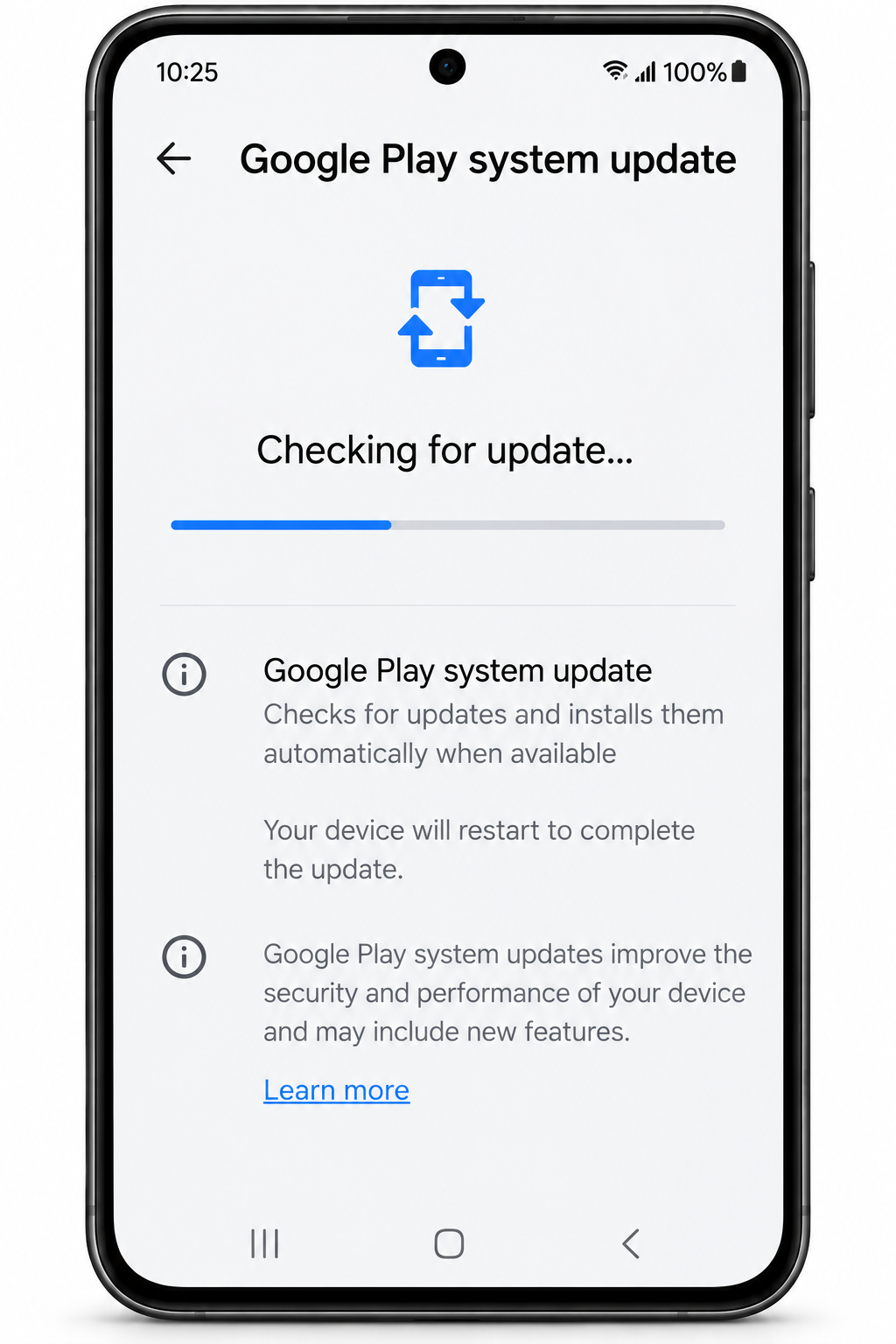
- Open Google Play system update and check for an available update.
- If Android offers an update, follow the instructions displayed on the screen.
- Restart the device if requested and check the update date again.
Settings labels and menu locations vary across Android versions and manufacturers. If you cannot find the option, use the Settings search bar and search for Google Play system update.
Method 2: Update Google Play services separately
Google Play services is different from the Google Play Store and the Google Play system update entry in Settings. It provides important functionality used by Google apps and other applications, and its updates can be released independently.
- Open Settings on your Android device.
- Search for Google Play services or open its app information page.
- If your device offers a supported update action, follow it. You can also open Google’s official Google Play services help page for the applicable instructions.
- Complete any on-screen steps and restart the phone if requested.
On some newer Android interfaces, Google also provides a System services page under Google settings. Available options depend on the device and software version. Do not disable or remove Google Play services as a troubleshooting shortcut.
Method 3: Update the Google Play Store app
- Open the Google Play Store.
- Tap your profile picture in the upper-right corner.
- Select Settings, then About.
- Tap Update Play Store.
- If an update is available, allow it to download and install.
- Follow any confirmation message shown by the Play Store.
This method updates the Play Store application. It does not directly install every Android system component update.
Google Play System Update vs. Google Play Services vs. Android OS Update
These three update types serve different purposes. Understanding the difference helps you identify which update your phone actually needs.
| Update type | What it updates | Where to check |
|---|---|---|
| Google Play system update | Supported Android system components that Google can update separately from a full operating system release. | Android version or the relevant security and system update settings. |
| Google Play services update | Google service functionality used for features such as account integration, security-related capabilities, and app connectivity. | Google Play services app information or the supported system services interface. |
| Google Play Store update | The app store interface and its app-discovery, distribution, and related features. | Play Store Settings, then About. |
| Android OS update | The device’s main Android operating system version, along with manufacturer-specific software changes where applicable. | Settings, then System or Software update, depending on the device. |
Installing one of these updates does not necessarily install the others. For example, your Play Store might be on a newer version while the Google Play system update date remains unchanged.
Android October 2026 Google Play System Update on Samsung Galaxy Phones
Samsung Galaxy phones use Samsung’s One UI interface, so their Settings menus can differ from those on Google Pixel phones. Google publishes system services release notes, but those notes do not guarantee that a particular October update has already reached every Galaxy model.
How to check on a Samsung Galaxy phone
- Open Settings.
- Tap About phone.
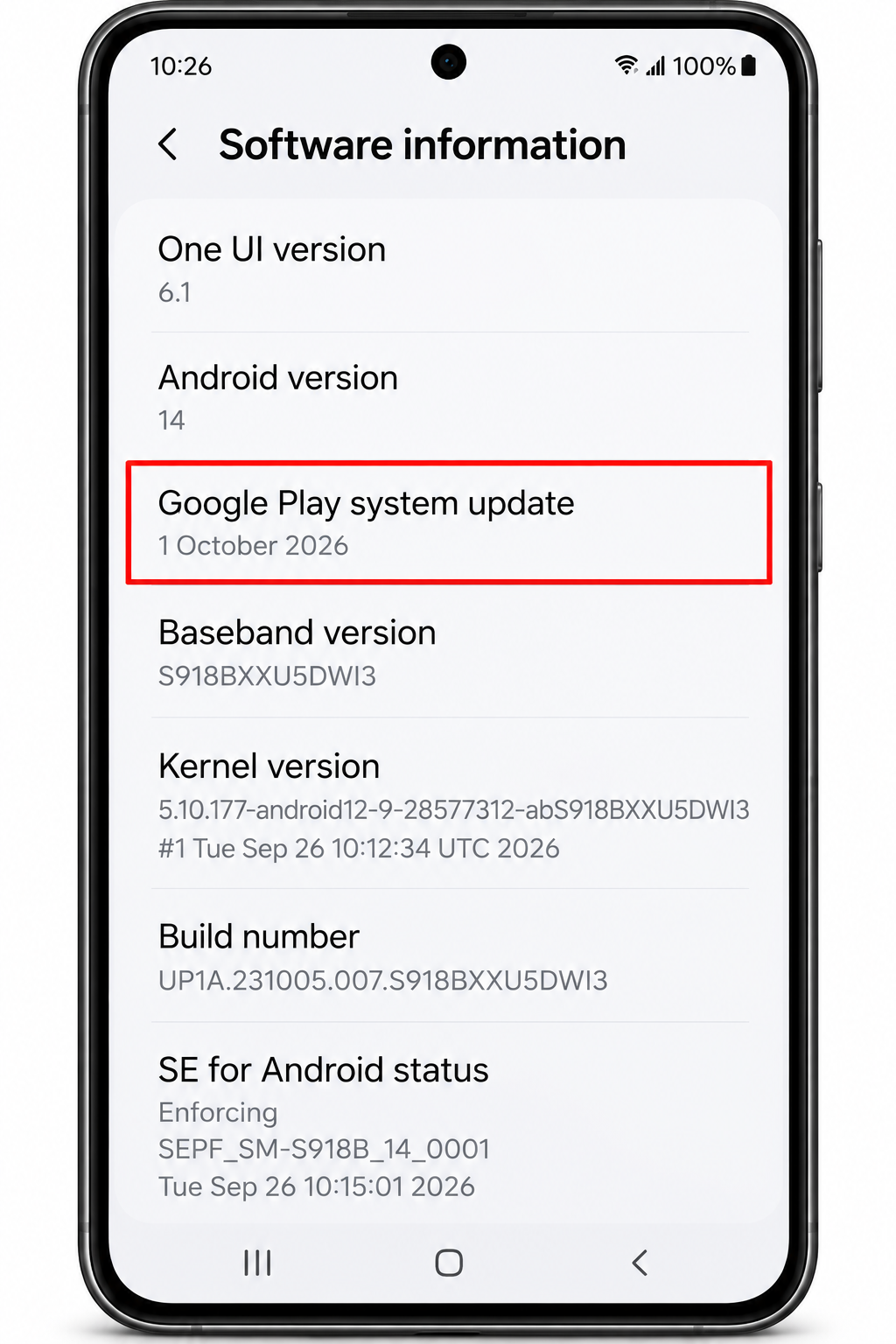
- Open Software information.
- Look for the Google Play system update entry and note its date, if displayed.
- Return to Settings and use the search function to find Google Play system update.
- If an update option is available, open it and follow the on-screen instructions.
- Separately, open Software update in Settings to check for Samsung firmware or Android OS updates.
Samsung menu names may differ by One UI version and model. A Samsung firmware update and a Google Play system update are not the same thing, so check both when troubleshooting outdated software.
If your Galaxy phone still shows an earlier Google Play system date, that alone does not prove the phone is unsupported or that the update has failed. Check for updates again and consult Samsung support if the device reports an error or remains unable to install an available update.
Google Play System Update on Android 12, 13, 14, 15, and 16
Google Play system updates are not the same as major Android version upgrades. A phone does not automatically move to Android 16 just because it installs an October 2026 Google Play system update.
| Android version | What to know |
|---|---|
| Android 12 | Check the available Google Play system update in Settings. Availability depends on the device and supported components. |
| Android 13 | Check the installed system update date and install any update offered to your device. |
| Android 14 | Google Play system updates and Android security updates remain separate entries or update mechanisms. |
| Android 15 | Do not assume that every feature listed in the October release notes is enabled on every Android 15 device. |
| Android 16 | Check the same system update information, but do not assume that every device receives the same component versions simultaneously. |
The official release notes do not provide a complete model-by-model compatibility matrix for every component. If you need confirmation for a specific phone, consult the manufacturer’s support information and the device’s own update screen.
Why Is the October 2026 Google Play System Update Missing?
There are several possible reasons why your phone might not display an October 2026 update.
- The update has not been offered to your device: Published release notes do not guarantee immediate availability on every phone.
- You are checking the wrong component: The Google Play Store version, Google Play services version, Android security patch, and Google Play system update date are separate pieces of information.
- The device has a different software configuration: Manufacturer customisation and device support can affect which components and options are available.
- A restart is pending: Some updates require a restart or additional installation steps before the change becomes active.
- The device has a download or installation problem: Network interruptions, insufficient storage, or a temporary software issue may interfere with updating.
An older displayed date is not, by itself, evidence of a security failure. Check the available updates and any error message before deciding what to do next.
How to Fix a Google Play System Update That Is Stuck
1. Check your internet connection and storage
- Connect to a stable Wi-Fi network.
- Check whether your phone has enough free storage for the update.
- Close unnecessary downloads or other activities that may be using the network.
- Return to the Google Play system update screen and check again.
Do not delete personal files blindly to free space. Remove unnecessary downloads or apps only after confirming that you no longer need them.
2. Restart your Android phone
- Save any open work.
- Restart the phone using its normal power menu.
- Reconnect to Wi-Fi after the phone starts.
- Open Settings and check for the Google Play system update again.
A restart can resolve temporary software problems, but it cannot force Google to offer an update that is not available for your device.
3. Check for a separate Android software update
- Open Settings.
- Look for System, Software update, or the manufacturer’s equivalent.
- Check whether an Android OS or manufacturer firmware update is available.
- Install it only if it is offered for your device, and follow the displayed instructions.
On a Samsung phone, use the Software update section in Settings. On other devices, the exact menu path may differ. An Android OS update may address a separate problem, but it is not a substitute for checking the Google Play system update status.
4. Update the Google Play Store if app downloads are also failing
If the problem affects Play Store app downloads as well as system update checks, verify that the Play Store app is up to date. Updating the store can help with store-related problems, but it does not guarantee that a Google Play system update will install.
5. Avoid unofficial update files and risky resets
Do not download a random APK advertised as the October 2026 Google Play system update. A component’s published version number does not establish that an APK from an unknown website is authentic, compatible, or safe to install.
Do not factory-reset the phone solely because its Google Play system date is older than expected. A factory reset erases local data and should not be an early troubleshooting step for a missing update. If the phone displays a persistent installation error, contact Google or the device manufacturer with the exact error message and model information.
Common Update Problems and What to Try
| Problem | Possible cause | Recommended action |
|---|---|---|
| October update is not listed | The update is not yet offered or the device uses a different component release. | Check Settings again and compare the relevant component with Google’s official release notes. |
| Download remains pending | Network interruption or a temporary update-service issue. | Reconnect to stable Wi-Fi, restart the phone, and check again. |
| Installation asks for a restart | The update requires a reboot to complete installation or activate changes. | Save your work and restart when prompted. |
| Play Store is outdated | The store application has a separate pending update. | Open Play Store Settings, then About, and select Update Play Store if available. |
| Android OS version has not changed | A Google Play system update does not necessarily upgrade the main Android version. | Check the Android OS update screen separately. |
| Update still fails after restarting | A persistent software, storage, compatibility, or service problem. | Record the error message and contact the device manufacturer or official Google support. |
How to Keep Your Android Device Updated
- Check Google Play system updates and Android OS updates separately.
- Install app updates through the official Google Play Store.
- Use a reliable network and keep sufficient free storage available.
- Restart the device when an update requests it.
- Use official Google and manufacturer support pages when an update repeatedly fails.
- Avoid unofficial system packages, modified update files, and instructions intended for a different device model.
Final Takeaway
The Android October 2026 Google Play system update should be checked through your phone’s own Settings rather than through an unofficial download site. Google’s October release notes confirm updates to Google Play services, the Play Store, WebView, and other system components, but these component versions are not interchangeable with the Google Play system update date shown on your device.
Start by checking the installed date, search for an available update, and follow the on-screen instructions. If your Samsung Galaxy, Pixel, Xiaomi, Redmi, OnePlus, Motorola, or another Android phone does not show the October update, do not assume that something is broken. Confirm the device’s available updates first, then troubleshoot any specific download or installation error.




Join Our Community
Stay connected and get the latest AI prompts, tools and tech tips.
Related Latest Posts
Free AI Video Generator: Best Tools to Try in 2026
Android October 2026 Google Play System Update: How to Check
15 Halloween AI Photo Prompts for Gemini & ChatGPT (2026)
How to Free Up Storage on iPhone: 10 Easy Ways