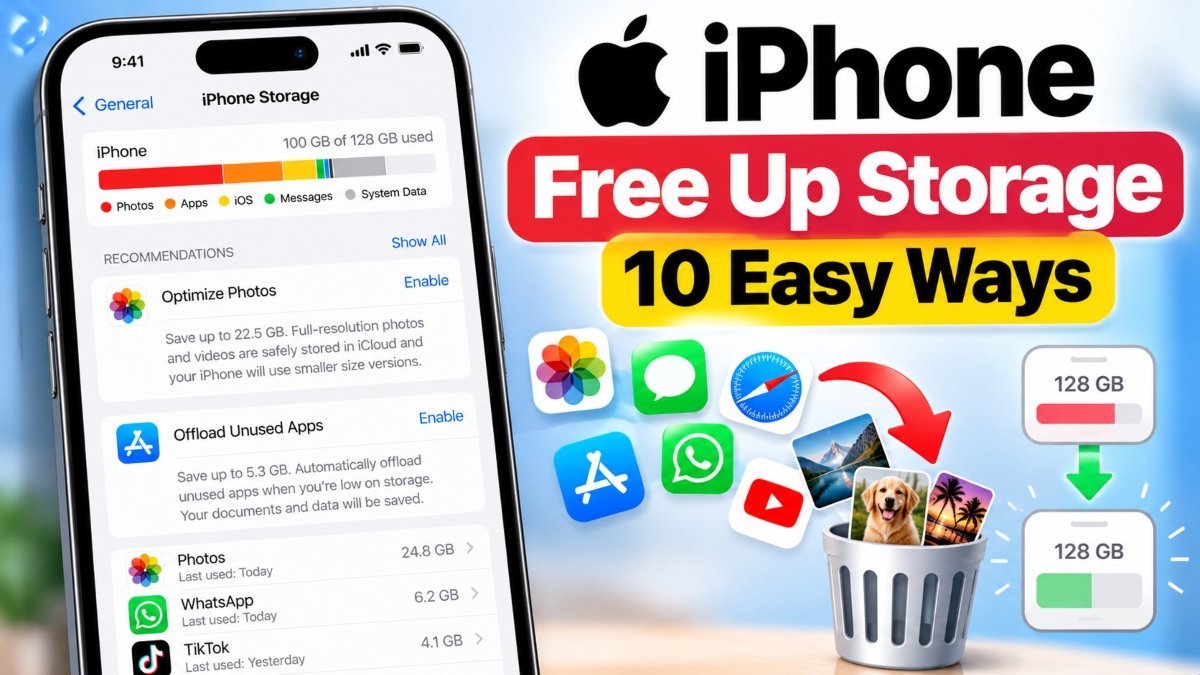
If your iPhone says storage is full, you may be unable to install apps, save photos, download files, or update iOS. You can often reclaim space by reviewing iPhone Storage, offloading unused apps, removing offline downloads, clearing Safari website data, and optimizing photos. The safest approach is to check what is consuming space before removing anything important.
Quick Answer: How to Free Up Storage on iPhone
Open Settings > General > iPhone Storage to see how much space is available and which apps or content use the most storage. Start with Apple’s storage recommendations, remove unnecessary downloads, and offload apps you rarely use. If photos and videos consume most of your space, consider enabling iCloud Photos with Optimize iPhone Storage.
If you want to free up storage without deleting photos or apps, begin with temporary files that iOS can manage, unnecessary downloaded files, offline videos, and Safari website data. However, these options may not recover enough space when your device is nearly full.
1. Check What Is Taking Up Space on Your iPhone
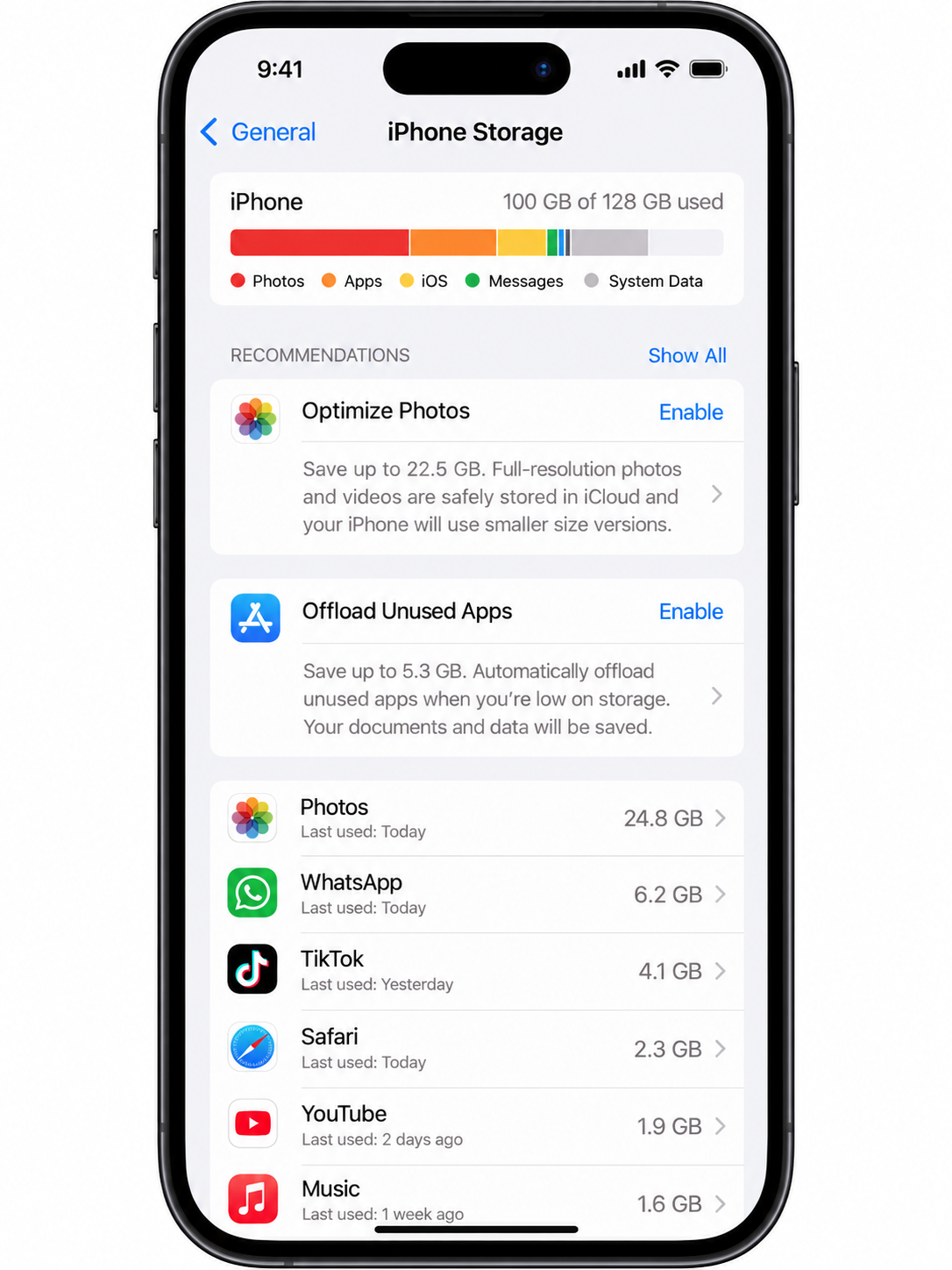
Before deleting anything, identify the largest storage categories. The amount of space used by an app includes more than its installation size; documents, downloads, and other app data can also contribute.
- Open Settings on your iPhone.
- Tap General.
- Select iPhone Storage.
- Wait for the storage chart and app list to load.
- Review the recommendations and check which apps use the most space.
- Tap an app to see its storage details and available management options.
For example, if a messaging app uses several gigabytes, its downloaded videos and attachments might be responsible. If Photos is the largest category, managing your media library may provide a bigger improvement than removing small apps.
Remember that cached and temporary data may not always be included in an app’s displayed storage total. Storage figures can also take time to refresh after you remove content.
2. Use iPhone Storage Recommendations
Apple may display recommendations on the iPhone Storage screen based on your device’s current usage. The available suggestions vary by iOS version and the content stored on your iPhone.
- Open Settings > General > iPhone Storage.
- Look for the recommendations displayed above the app list.
- Open a recommendation to review what it will change.
- Follow the instructions only if you are comfortable with the proposed action.
Some recommendations help you remove large attachments or unnecessary content. Others may suggest offloading unused apps. Review the details before confirming an action, especially if it involves deleting files or personal data.
3. Offload Unused Apps Without Removing Their Documents and Data
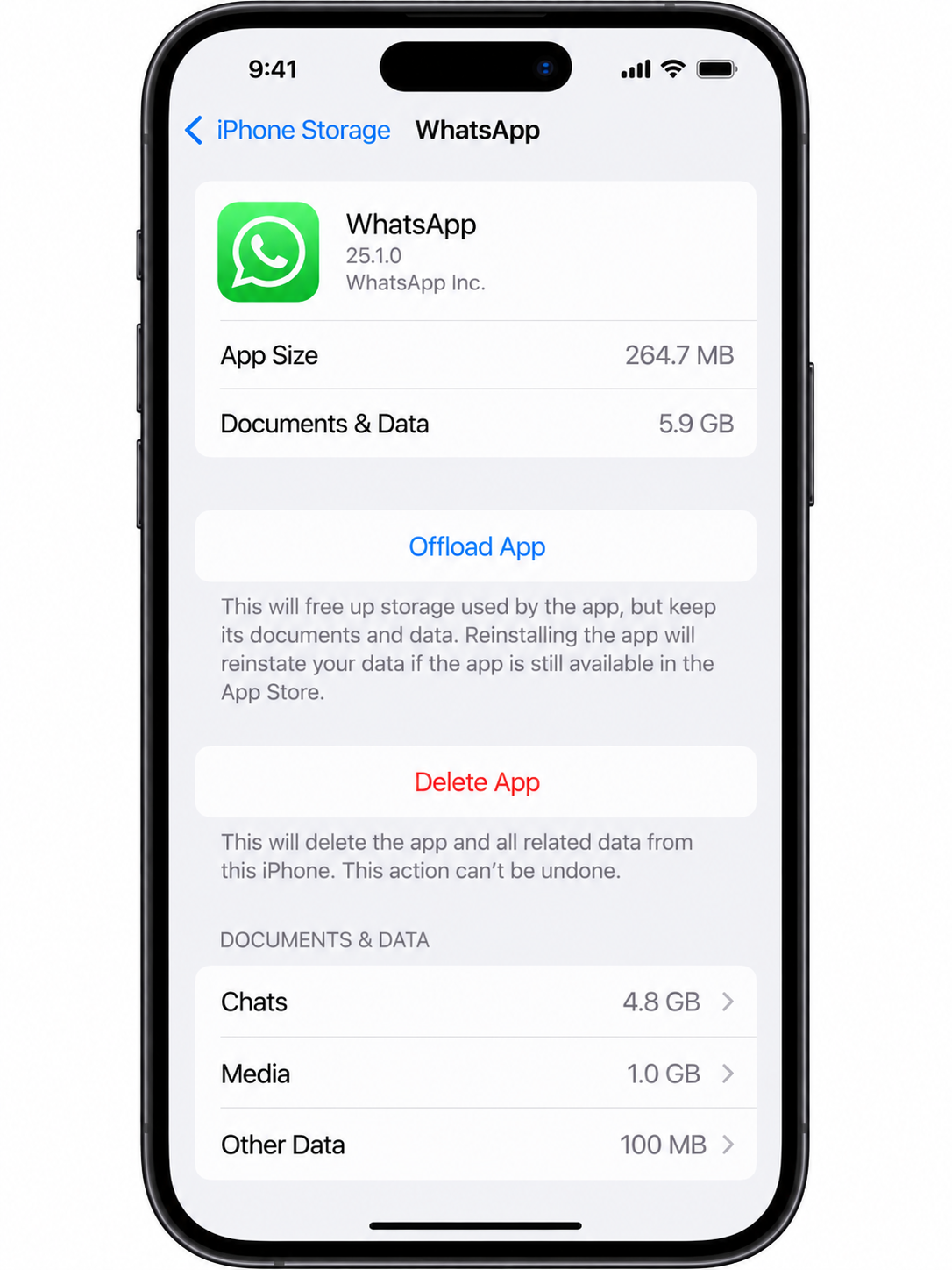
Offload App is useful when you want to reclaim space without completely removing an app’s stored documents and data. It removes the app itself while retaining its documents and data for potential reuse when you reinstall it.
How to offload an app manually
- Open Settings > General > iPhone Storage.
- Select an app you rarely use.
- Tap Offload App.
- Confirm the action if prompted.
The app icon may remain on your Home Screen with a cloud symbol. Tap it to download the app again when you need it, provided the app remains available and compatible.
Offload App vs. Delete App
- Offload App: Removes the app installation but keeps its documents and data.
- Delete App: Removes the app and its associated local data. Some information may still exist in a separate cloud account or backup, but recovery is not guaranteed.
Offloading may not save much space if the app’s documents and data account for most of its storage. Check the breakdown before choosing this option.
Enable automatic offloading
On supported iOS versions, you can enable automatic offloading for apps you rarely use.
- Open Settings.
- Open Apps > App Store on recent iOS versions. The location can differ on older versions.
- Turn on Offload Unused Apps, if the option is available.
This allows iOS to remove unused app installations when space is needed while retaining their documents and data. It does not guarantee that every app’s data will be preserved indefinitely, so keep separate backups of important information.
4. Free Up Storage by Removing Unnecessary Downloads
Downloaded videos, music, podcasts, maps, and files can occupy substantial space. Removing an offline download is often a practical way to recover storage without affecting your main photo library or deleting an app.
Remove downloaded files
- Open the Files app.
- Tap Browse.
- Check Downloads under the available locations.
- Review large files and remove only those you no longer need.
Check whether a file is stored under iCloud Drive or On My iPhone before deleting it. Deleting a file from iCloud Drive can also remove it from other devices using the same synced account. If your goal is only to remove a local download, look for an option such as Remove Download where available rather than deleting the original cloud file.
Remove offline media
Open the music, podcast, video, or streaming app that stores your offline content. Review its downloaded items and remove episodes, songs, or videos you can stream again later. The exact steps depend on the app.
Check the Downloads section in navigation apps and other software as well. Some apps keep their own offline files, which may not be removable from the Files app.
5. Clear Safari Cache and Website Data
Safari stores website data to help pages load and remember certain preferences. Removing this data can reclaim some space, but it may also sign you out of websites and reset website permissions or preferences.
Clear Safari history and website data
- Open Settings.
- On recent iOS versions, tap Apps > Safari. On some older versions, Safari appears directly in Settings.
- Tap Clear History and Website Data.
- Select the available timeframe and profile options, if shown.
- Confirm by tapping Clear History or the equivalent confirmation option.
This action clears the selected browsing history and website data, including cookies and cache. Depending on your settings, it may affect website sign-ins and permissions. It does not clear browsing histories independently stored by other apps or websites.
Remove website data while keeping browsing history
- Open Settings > Apps > Safari.
- Tap Advanced.
- Select Website Data.
- Choose Remove All Website Data, if available, and confirm.
If the button is unavailable or the expected options are missing, check your iOS version and any applicable Screen Time restrictions.
6. Free Up iPhone Storage by Managing Photos and Videos
Photos and videos are often among the largest storage categories, especially when your library includes long 4K videos, screen recordings, and duplicate images. Review your library before removing media you want to keep.
Delete unwanted photos and videos
- Open the Photos app.
- Review large videos, duplicate images, screenshots, and unwanted recordings.
- Select only the items you no longer need.
- Delete the selected items.
- Open Recently Deleted and permanently remove the items if you are certain you no longer need them.
Deleted items may remain in Recently Deleted for a period before permanent removal, so deleting them from the main library might not immediately reclaim all the space. Permanently deleting them removes your opportunity to recover them through that album.
If iCloud Photos is enabled, deleting a photo or video can also delete it from other devices that sync with the same library. Verify that important originals are backed up or exported before removing them.
Optimize iPhone Storage with iCloud Photos
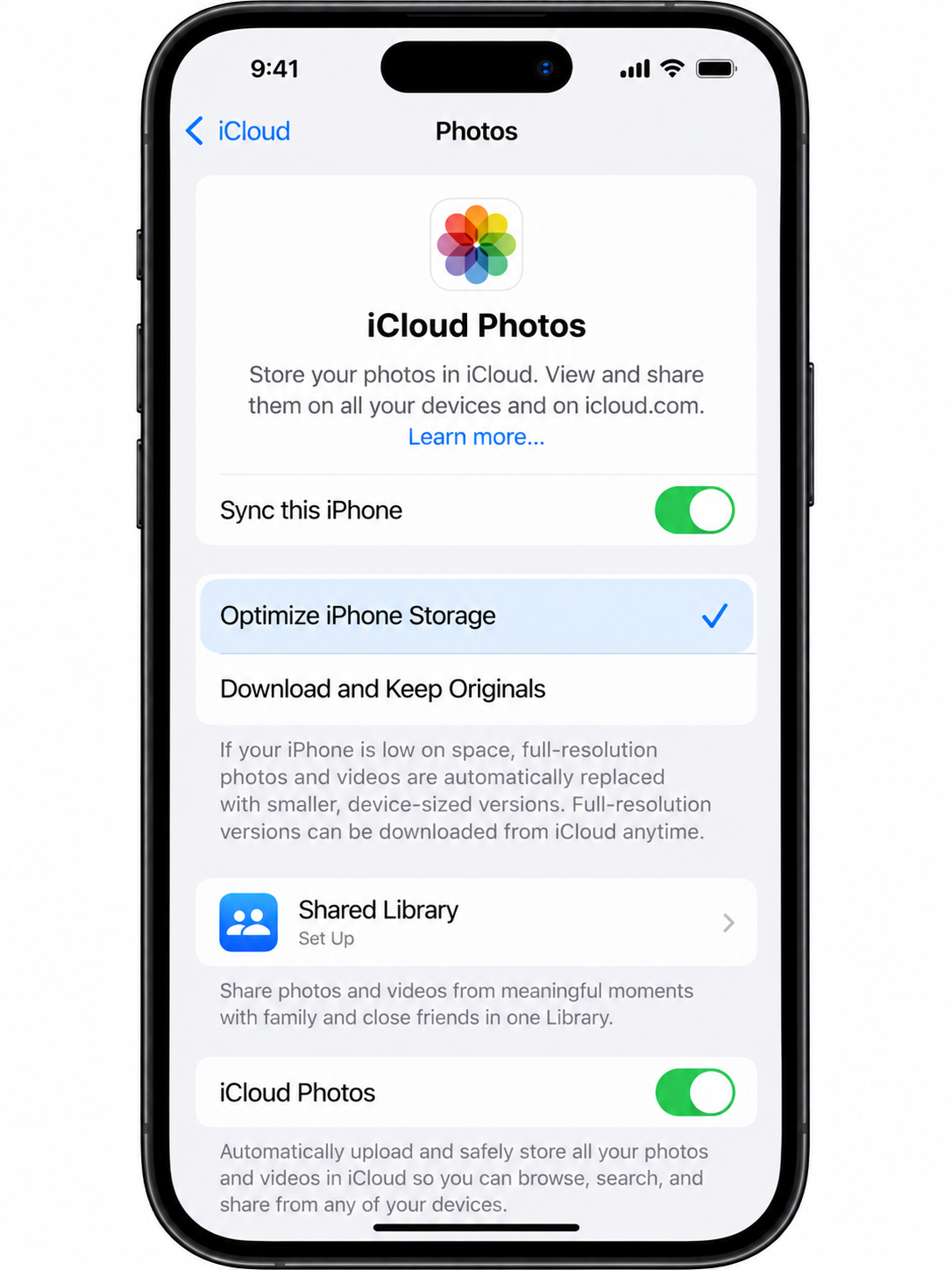
If you have sufficient iCloud storage, Optimize iPhone Storage can reduce the space required for your local photo library. Full-resolution originals are stored in iCloud, while space-saving versions remain on the iPhone as needed.
- Open Settings.
- Tap your name at the top.
- Select iCloud > Photos.
- Enable Sync this iPhone, if it is not already enabled.
- Select Optimize iPhone Storage.
Keep your iPhone connected to Wi-Fi and power when practical, and allow syncing and optimization to progress. The amount of space recovered depends on your library, available iCloud storage, and the device’s current state.
Important: iCloud Photos is a synchronization service, not an independent archive of deleted photos. Before changing synchronization settings or deleting media, verify that your important files are safely backed up or exported.
7. Free Up Space Without Deleting Apps or Photos
If you want to keep your apps and photo library, concentrate on other content first. These steps can help, although the amount of space recovered depends on what is stored on your device.
- Remove offline videos and music: Delete downloaded content you can access again through the original service.
- Review Files downloads: Remove unnecessary local documents and duplicate downloads.
- Clear Safari website data: This may reduce cached website data, but can affect logins and browsing history.
- Review Messages attachments: Find large videos, photos, and files you no longer need, while preserving important conversations.
- Review app-specific downloads: Check navigation, streaming, and document apps for content that can be downloaded again.
- Restart the iPhone: This may help refresh the system after cleanup, but it is not a substitute for removing stored content.
iOS automatically manages certain temporary and recoverable files when it needs space. There is no universal cache-clearing button for every iPhone app. If one app uses excessive storage, check whether it offers its own storage-management settings before considering more disruptive steps.
8. Fix iPhone Storage Full Despite Having Available iCloud Storage
iPhone storage and iCloud storage are separate. Your iPhone has a fixed physical storage capacity, while iCloud provides online storage for supported backups, photos, files, and synced information.
For example, an iPhone with 128 GB of storage can still run out of local space even if your iCloud plan has hundreds of gigabytes available. Buying more iCloud storage does not automatically increase the iPhone’s physical capacity.
Check both storage totals
- Open Settings > General > iPhone Storage to check local storage.
- Return to Settings and tap your name.
- Tap iCloud to review cloud storage usage.
- If Photos occupies substantial local space, check whether iCloud Photos is syncing and Optimize iPhone Storage is selected.
- If iCloud is full, manage your cloud storage or consider an appropriate plan before relying on additional uploads.
Cloud storage only helps free local space when the relevant feature supports optimization or when you safely transfer content elsewhere and remove the local copy. Files that remain downloaded on your iPhone continue to use device storage.
9. Free Up Storage When Installing an iOS Update
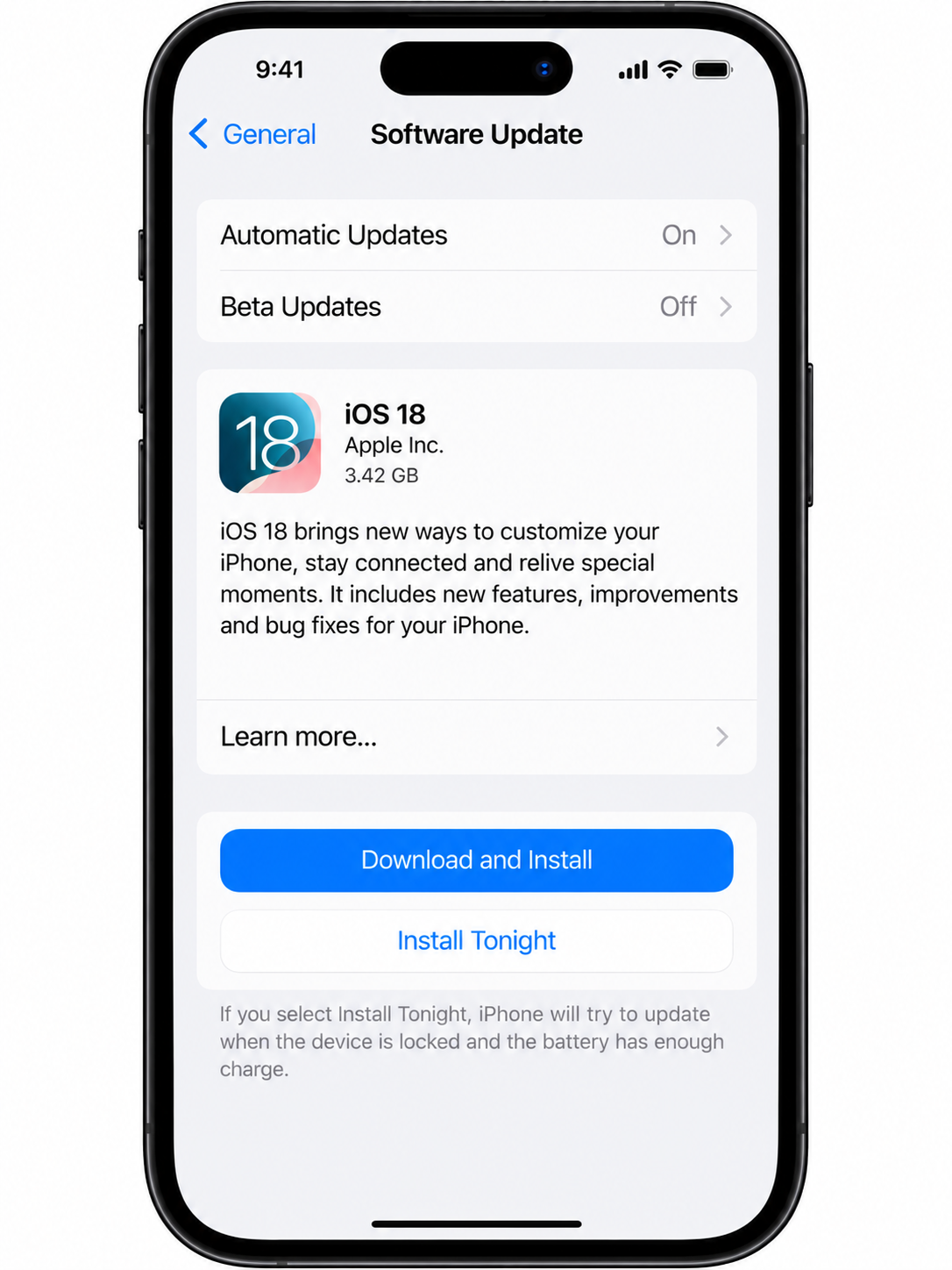
iOS updates need sufficient local storage to download, prepare, and install. If an update reports insufficient space, use the built-in storage recommendations first rather than deleting important files in a hurry.
- Open Settings > General > iPhone Storage.
- Review Apple’s recommendations and enable Offload Unused Apps if the option is offered.
- Remove unnecessary offline downloads and files that you can safely replace.
- If your photo library is large, consider enabling Optimize iPhone Storage and allowing the library to sync.
- Restart the iPhone if needed, then return to Settings > General > Software Update.
- Retry the update when sufficient space is available, keeping the device connected to power and a reliable Wi-Fi network.
If the update still will not install, verify that your iPhone supports that iOS release and that the download has not become stuck. You can also update through a trusted Mac using Finder or a Windows PC using the Apple Devices app, where supported. A computer-based update may help when an over-the-air update fails, but it is not a guarantee that insufficient device storage will never be an issue.
Back up your iPhone before updating, particularly if you are planning to remove important data to make room.
10. What Happens When iPhone Storage Is Full?
When local storage is nearly exhausted, you may encounter problems saving new photos or videos, installing or updating apps, downloading files, and installing iOS updates. Some apps may also struggle to create temporary files or complete tasks that need additional working space.
The exact effects depend on the app, the remaining space, and the task. A full-storage warning does not automatically mean your iPhone is damaged, and slow performance can have other causes as well.
Try these practical fixes based on the symptom:
- Cannot take photos: Check iPhone Storage and remove replaceable downloads or unnecessary files.
- Cannot install an app: Review available storage, restart the device if appropriate, and try the download again.
- Cannot install an iOS update: Follow the storage steps in the previous section and confirm device compatibility.
- Storage numbers seem unchanged: Allow time for the storage chart and synced content to refresh.
- System Data appears unusually large: Restart the iPhone and install available updates when practical. iOS manages many system and temporary files automatically, and there is no guaranteed manual method to clear all System Data.
Common Mistakes to Avoid When Cleaning iPhone Storage
- Assuming iCloud storage replaces device storage: Cloud capacity and physical device capacity serve different purposes.
- Deleting synced photos to save space: With iCloud Photos enabled, deletions can sync to other devices.
- Confusing offloading with deletion: Offloading retains documents and data, whereas deleting an app can remove its local data.
- Clearing Safari data without considering the consequences: You may lose website history, cookies, and some stored website preferences.
- Using third-party cleaner apps without checking their claims: iOS restricts access to other apps’ data, and cleaner apps cannot universally clear every app’s cache.
- Removing files before verifying a backup: A backup or cloud sync should not be assumed complete just because it is enabled.
Final Takeaway
The best way to free up storage on an iPhone is to identify the largest storage categories and choose the least disruptive solution first. Review iPhone Storage, remove unnecessary downloads, offload unused apps, clear Safari website data when appropriate, and optimize your photo library if you use iCloud Photos.
If you need to preserve every app and photo, you may still recover some space from downloads, caches, and other replaceable content. However, if your device is genuinely full, you may eventually need to move, offload, optimize, or delete some data. Always verify backups and understand what will be removed before confirming a cleanup action.





Join Our Community
Stay connected and get the latest AI prompts, tools and tech tips.
Related Latest Posts
Free AI Video Generator: Best Tools to Try in 2026
Android October 2026 Google Play System Update: How to Check
15 Halloween AI Photo Prompts for Gemini & ChatGPT (2026)
How to Free Up Storage on iPhone: 10 Easy Ways