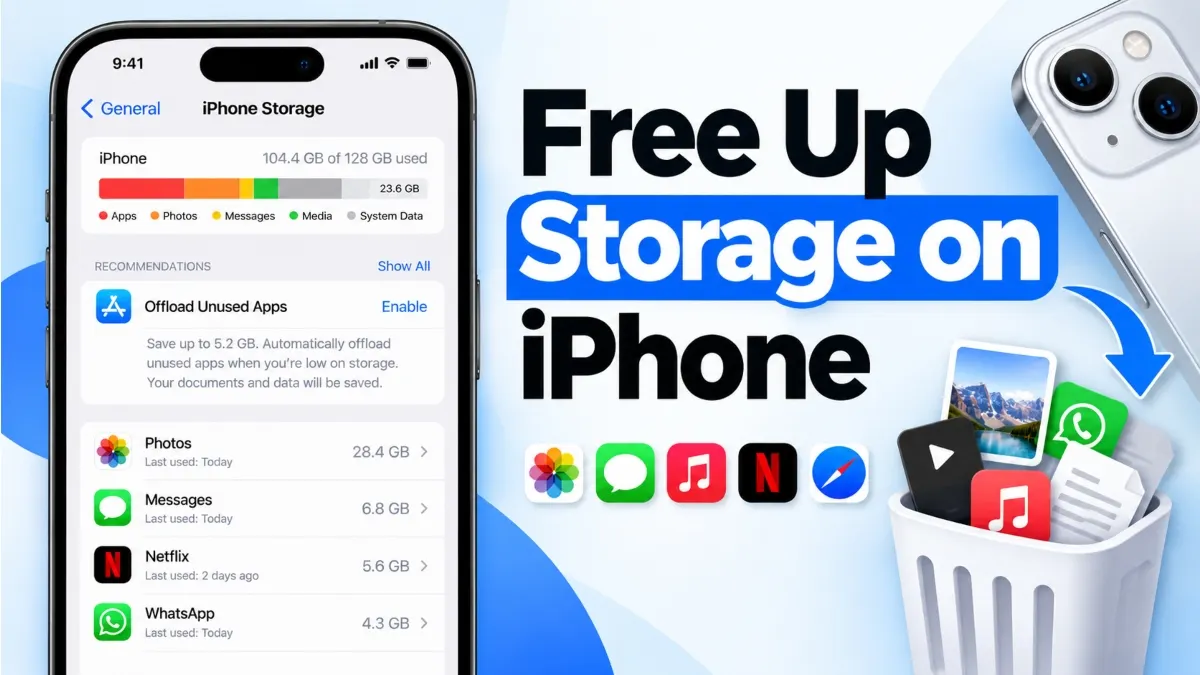
Your iPhone can run out of storage even when you have plenty of iCloud space, very few apps, or photos backed up online. The reason is that your iPhone’s internal storage and iCloud storage are separate. To free up storage on iPhone without losing important files, start by checking which apps and files use the most space, then use Apple’s built-in storage management options.
You can often reclaim space without deleting apps or photos by removing temporary files, clearing browser data, reviewing downloaded content, and optimizing photo storage. However, some methods only help a little, and freeing a significant amount of space may require moving, offloading, or deleting data.
Quick Answer: How to Free Up Storage on iPhone
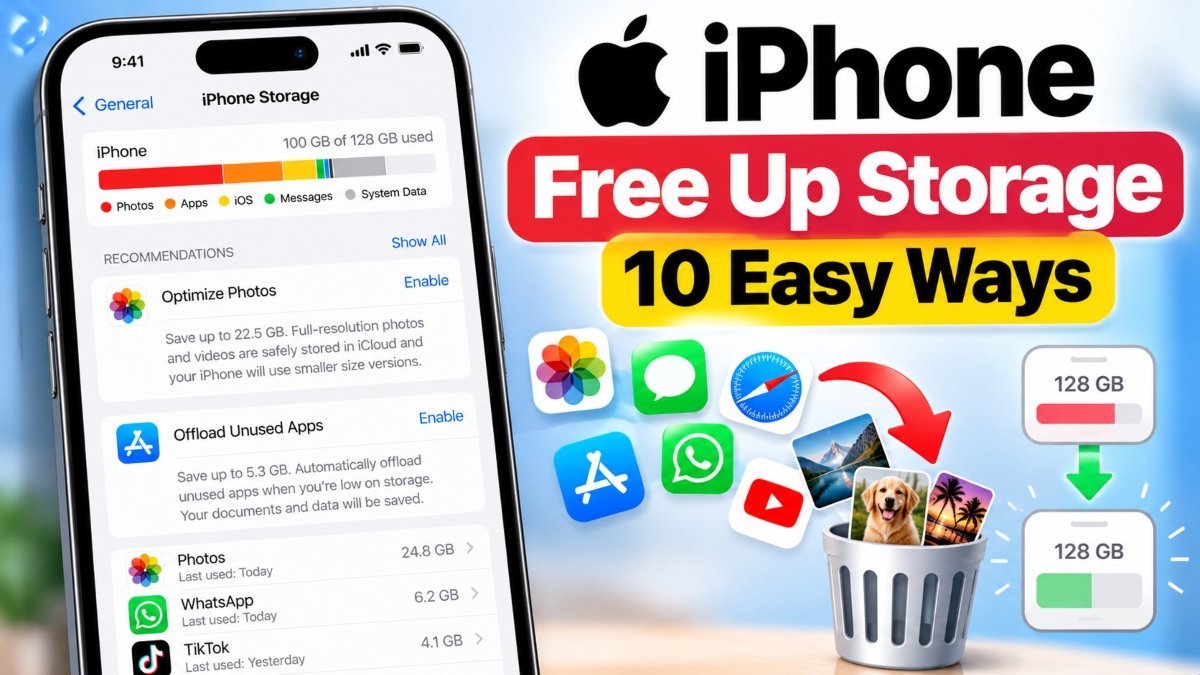
The quickest way to identify what is filling your iPhone is to open Settings → General → iPhone Storage. Wait for the storage recommendations and app list to load, then check which categories use the most space.
Try these methods first:
- Enable Optimize iPhone Storage in iCloud Photos if you use iCloud Photos.
- Clear Safari browsing data if you are comfortable removing browsing history and website data.
- Remove downloaded videos, music, podcasts, and offline maps you no longer need.
- Use Offload App for apps you rarely use when you want to preserve their documents and data.
- Review large message attachments and app-specific downloads.
- Restart your iPhone if storage figures appear stuck after cleanup.
Important: If you want to free up storage without deleting anything, begin with optimization and temporary-file cleanup. You cannot always recover a substantial amount of space without removing, moving, or optimizing some data.
1. Check What Is Using Your iPhone Storage
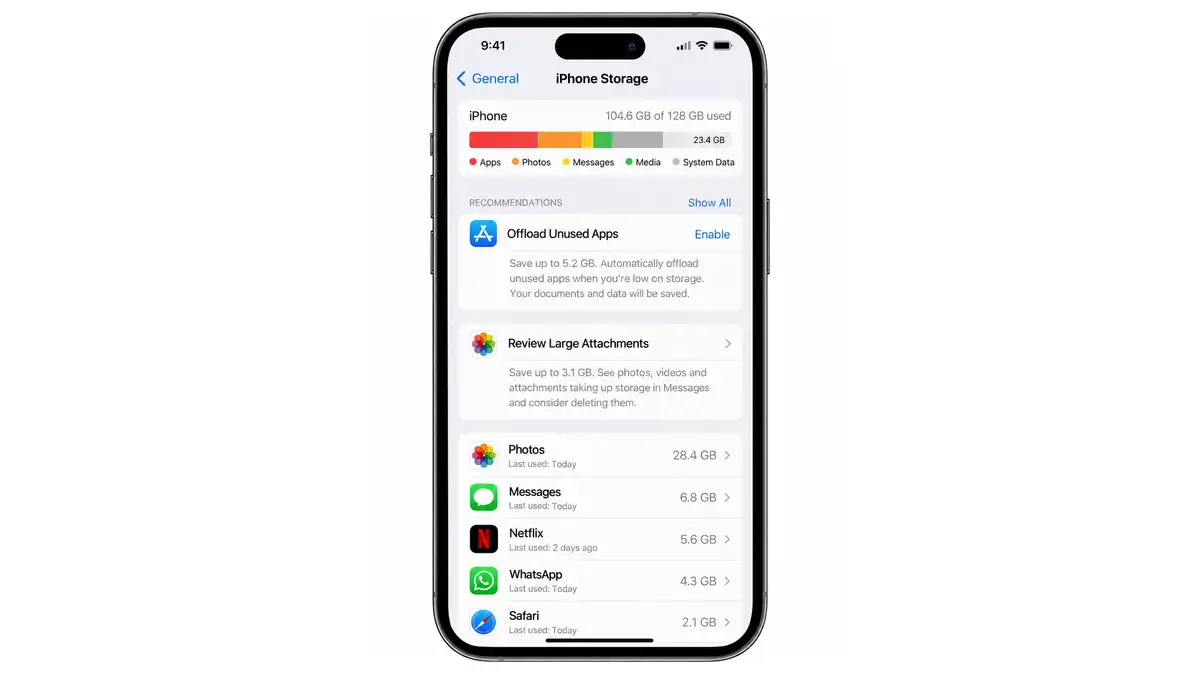
Before changing settings, identify where your storage is going. This helps you avoid removing useful files while making little difference to available space.
- Open Settings on your iPhone.
- Tap General.
- Select iPhone Storage.
- Wait for the storage bar, recommendations, and app list to finish loading.
- Review the categories and select large apps to inspect their storage usage.
Your iPhone may show categories such as Apps, Photos, Media, Messages, iOS, and System Data. The exact categories and their sizes depend on your device and installed software.
Pay attention to both the app size and its documents and data. An app that takes up little space when installed may accumulate large downloads, cached files, or saved content over time.
For example, if a video streaming app occupies several gigabytes, its downloaded episodes may be using more space than the app itself. If Photos is the largest category, optimizing photo storage may be more effective than clearing Safari data.
2. How to Free Up Storage on iPhone Without Deleting Anything
If you want to keep your apps, photos, and personal files, start with these lower-impact options. The amount of space recovered depends on what is currently stored on your device.
Method 1: Optimize Photos With iCloud Photos
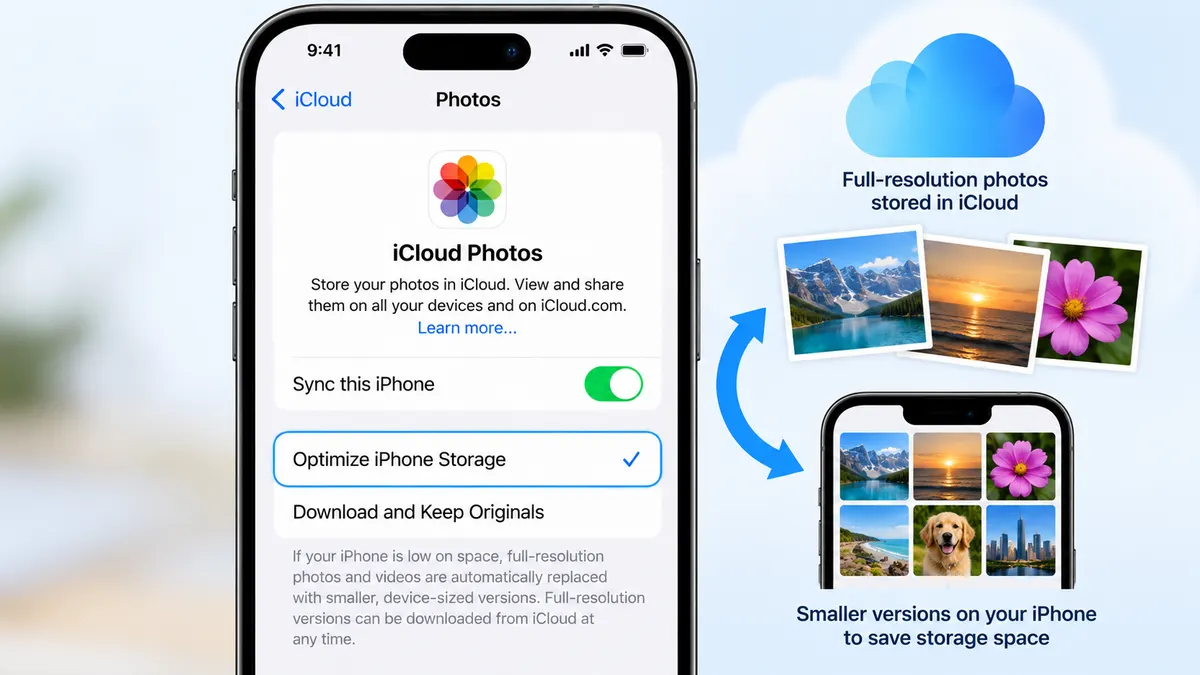
If you use iCloud Photos, Apple’s Optimize iPhone Storage option can reduce the space occupied by your photo library on the device. Full-resolution originals are stored in iCloud, while space-saving versions remain on your iPhone as needed.
- Open Settings.
- Tap your name at the top.
- Select iCloud, then Photos. On some iOS versions, the Photos option may appear under a slightly different layout.
- Make sure Sync this iPhone or the equivalent iCloud Photos syncing option is enabled.
- Select Optimize iPhone Storage.
- Connect your iPhone to Wi-Fi and power, then allow time for syncing and optimization.
Optimization does not necessarily free up space immediately. The amount recovered depends on the size of your photo library, available iCloud capacity, and the device’s storage needs.
Before you begin: Check that your iCloud account has enough available storage and that your photos have finished syncing. iCloud Photos synchronizes changes across devices, so deleting a photo from your iPhone can also delete it from iCloud Photos and other synced devices.
Method 2: Clear Safari Cache and Website Data
Safari stores website data and cached files to help pages load faster. Removing this data may free up some storage, although the amount varies.
- Open Settings.
- Find and select Apps → Safari on newer iOS layouts. On some older versions, Safari appears directly in Settings.
- Tap Clear History and Website Data, if available.
- Choose the requested time range and confirm the action when prompted.
This action may remove browsing history, cookies, and other website data. You might need to sign in to some websites again. If you want to retain browsing history, look for the website-data management option in Safari settings instead, where available.
Clearing Safari data does not remove the cache belonging to every other app on your iPhone.
Method 3: Remove Temporary Files by Restarting Your iPhone
iOS manages temporary files and cached resources automatically. Restarting your iPhone can sometimes resolve stale storage readings or temporary software issues, but it is not a guaranteed way to recover significant space.
- Save your work and close any ongoing downloads or updates.
- Restart your iPhone using the shutdown controls appropriate for your model.
- Wait for the device to start fully.
- Open Settings → General → iPhone Storage again.
- Check whether the available storage has changed.
Do not expect a restart to erase app caches or personal data systematically. If System Data remains large, use the troubleshooting steps later in this guide.
3. Free Up Space Without Deleting Apps
You do not always need to remove an app to recover storage. Many apps store offline content, attachments, and other files separately from the app itself.
Remove Downloaded Videos, Music, and Podcasts
Offline downloads can consume several gigabytes, particularly if you save high-resolution videos or multiple episodes.
- Open the app that contains the downloads.
- Look for sections named Downloads, Offline, or Downloaded.
- Review the saved content and remove items you can stream or download again later.
- Return to Settings → General → iPhone Storage to review the result.
The exact steps depend on the app. Removing an offline download usually leaves the app installed, but it may not be available without an internet connection afterward.
Review Large Message Attachments
Photos, videos, and other attachments in Messages can take up considerable space.
- Open Settings → General → iPhone Storage.
- Select Messages, if it appears in the list.
- Review any available recommendations or large-attachment categories.
- Remove only the attachments you no longer need.
Deleting message attachments can be permanent, depending on your recovery options and sync settings. Save important files elsewhere before removing them.
Clear App-Specific Cache Where Supported
There is no universal iPhone setting that clears the cache of every installed app. Some apps provide their own cache-cleaning controls, while others manage temporary files automatically.
- Open Settings → General → iPhone Storage.
- Select the app that uses a large amount of space.
- Check whether its documents and data account for most of the usage.
- Open the app’s own settings and look for a cache or storage-management option, if available.
- Remove only data you understand and no longer need.
Avoid deleting an app and reinstalling it as your first choice if you need to preserve offline files, drafts, downloads, or unsynced information. Reinstallation may remove local data, and some apps do not restore everything automatically.
4. Free Up Storage on iPhone Without Deleting Photos
If you want to keep your pictures and videos, focus on optimizing their local storage rather than deleting the originals.
- Enable iCloud Photos optimization: This is useful when you have a large library and sufficient iCloud storage.
- Transfer originals to a computer: You can copy important photos and videos to a Mac or Windows PC, verify the transfer, and then decide whether to remove local copies.
- Review video downloads in other apps: Streaming downloads and received videos may use storage outside the Photos library.
- Check duplicate or unnecessary exports: Look for copies saved in Files or other apps, but remove them only after verifying where the originals are stored.
If you choose to transfer photos to a computer, open several transferred files and confirm that the full collection is present before deleting anything from the iPhone. A transfer is not the same as a verified backup.
5. Why Is iPhone Storage Full When I Have iCloud?
Having iCloud storage does not automatically increase your iPhone’s physical storage. For example, an iPhone with 128 GB of internal storage still has 128 GB of device capacity even if your iCloud plan has much more space available.
The two storage types serve different purposes.
| Storage type | What it stores | How it helps |
|---|---|---|
| iPhone storage | Installed apps, local photos, downloads, messages, iOS, and other device data | Determines how much space is available on your phone |
| iCloud storage | Cloud photos, device backups, iCloud Drive files, and other synced data | Stores supported content online and can help reduce local usage through features such as photo optimization |
To address full iPhone storage despite having iCloud, check these points:
- Open Settings → General → iPhone Storage to identify the largest categories.
- Open Settings → your name → iCloud and check the remaining iCloud capacity.
- If Photos is the main problem, enable Optimize iPhone Storage and allow syncing to complete.
- If apps or downloads are the main problem, manage their local storage separately.
- If iCloud is full, free up cloud capacity or review your storage plan before expecting syncing and backups to work normally.
Important distinction: An iCloud backup is not the same as freeing local storage. Backing up your iPhone does not automatically remove the original files from the device.
6. Use Offload App to Recover Space While Keeping App Data
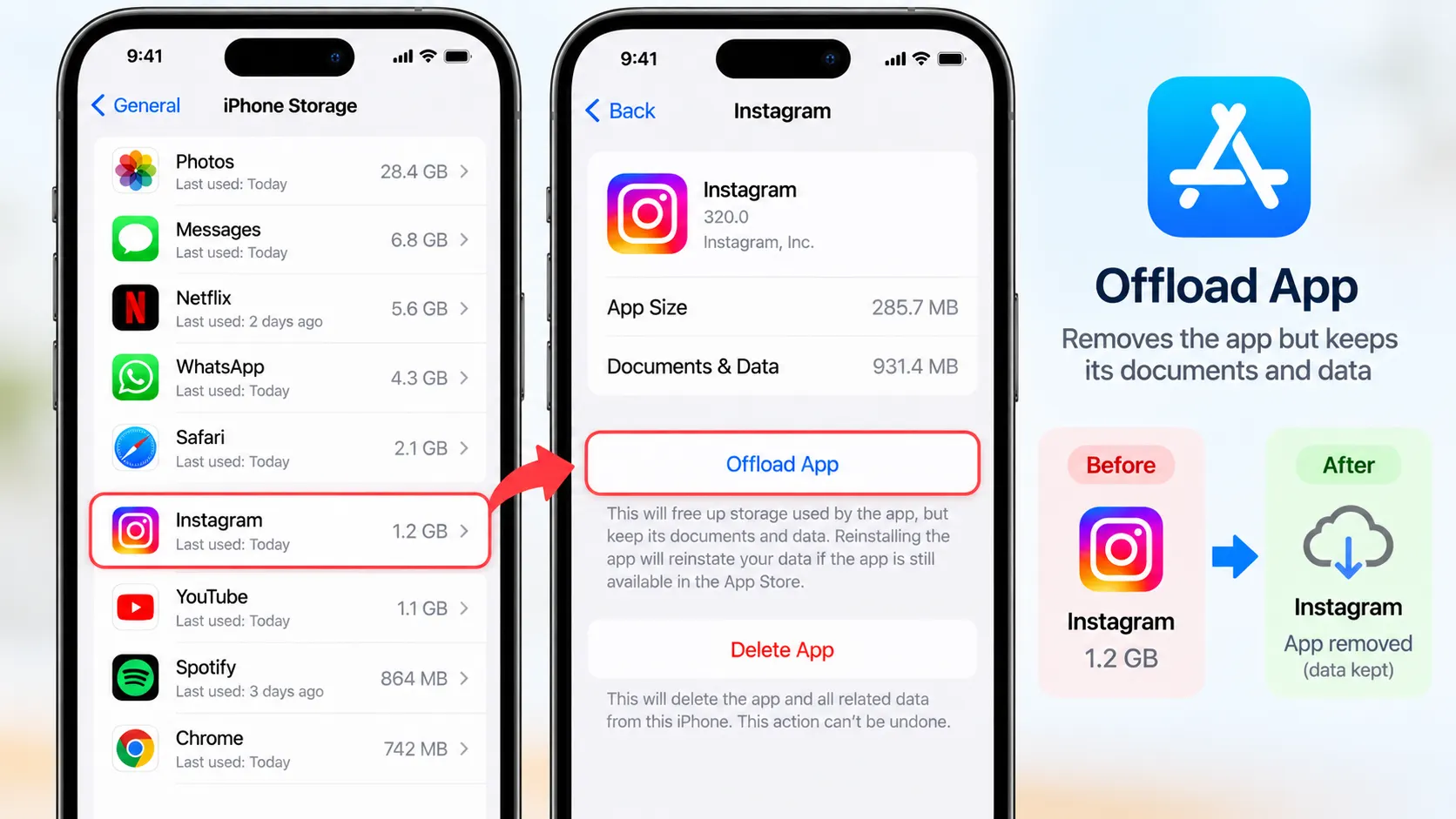
Offloading removes an app’s installed files while generally preserving its documents and data on the device. This can be useful when you want to keep an app’s data but do not need the app installed temporarily.
- Open Settings → General → iPhone Storage.
- Select an app you rarely use.
- Tap Offload App, if the option is available.
- Confirm your choice.
- Repeat only for apps you can reinstall when needed.
You can also check the option to offload unused apps automatically in iPhone storage settings, where available.
Offloading is different from deleting an app. However, it does not guarantee that every type of app data will be preserved indefinitely or that all app content will be available offline. Keep important documents backed up.
7. Free Up iPhone Storage Before Installing an iOS Update
An iOS update may need additional temporary space to download, prepare, and install. If your iPhone reports that there is not enough storage, try the following steps.
- Open Settings → General → iPhone Storage.
- Review Apple’s recommendations and identify large apps or downloads.
- Remove offline videos, music, podcasts, or other downloads that you can retrieve later.
- Enable photo optimization if you use iCloud Photos and have enough cloud storage.
- Offload an unused app if you need additional space while preserving its documents and data.
- Return to Settings → General → Software Update and try the update again.
The exact free-space requirement depends on the update and device. Do not rely on a fixed storage amount for every iOS release.
If the update still fails, consider updating through a Mac or a compatible Windows computer using Apple’s supported update process. Make a backup first and follow Apple’s instructions for your computer and iPhone.
8. What Happens When iPhone Storage Is Full?
When available device storage becomes extremely low, you may encounter problems such as:
- Apps failing to download or update.
- Photos and videos failing to save properly.
- Problems downloading or installing iOS updates.
- Apps taking longer to open or struggling to store new data.
- Warnings that the device has insufficient storage.
The exact symptoms vary. Full storage does not automatically mean that your photos or apps will be deleted, but continuing to use a device with very little free space can make normal tasks difficult.
Try to maintain some free space for everyday operations, downloads, and updates. There is no single minimum amount that is ideal for every iPhone or iOS version.
9. Troubleshooting: iPhone Storage Is Still Full
System Data Is Taking Up Too Much Space
System Data can include caches, logs, temporary resources, and other system-related information. Its size may change as iOS manages temporary files.
- Restart the iPhone and check storage again.
- Install available iOS updates when appropriate and after backing up important data.
- Review Safari data and large app downloads.
- Allow time for background processing to finish before judging the storage change.
Avoid using unofficial cleaning tools or following instructions that require unnecessary configuration changes. If System Data remains unusually large and the device is difficult to use, consult Apple Support before considering a reset.
iCloud Photos Is Not Freeing Up Space
Check that iCloud Photos is enabled, the correct Apple Account is signed in, sufficient iCloud capacity is available, and syncing has not paused. Connect to Wi-Fi and power, then give optimization time to work.
If the library has not finished uploading, do not assume that all originals are safely stored in iCloud.
Storage Figures Do Not Change After Cleanup
Some apps and system categories take time to recalculate. Restart the iPhone, revisit iPhone Storage, and check the relevant app’s own storage information. If the space remains occupied, the files may still be stored locally or the cleanup may have removed less data than expected.
There Is Not Enough Space to Update iOS
Remove replaceable downloads first, use Optimize iPhone Storage if appropriate, and offload an unused app if necessary. If these options are insufficient, back up your device and use Apple’s supported computer-based update method.
10. Common Mistakes to Avoid
- Assuming iCloud adds physical storage: Cloud capacity and device capacity are separate.
- Deleting photos before verifying a backup: With iCloud Photos, deletion can sync across devices.
- Using random cleaner apps: iOS restricts how third-party apps can access and clear other apps’ data. Prefer built-in controls.
- Deleting apps without checking their data: Unsynced documents, drafts, and downloads may be lost.
- Expecting a restart to clear everything: A restart can help with temporary issues but does not erase all cached data.
- Removing files without checking their location: A file may exist only on the iPhone, even if you assume it is backed up elsewhere.
11. Do These Methods Work on iPhone 11, 12, 13, 14, 16, and iPhone SE?
The core storage-management methods are generally similar across supported iPhone models. Your exact menu layout depends more on the installed iOS version than on whether you own an iPhone 11, iPhone 12, iPhone 13, iPhone 14, iPhone 16, or iPhone SE.
The practical approach is the same:
- Check Settings → General → iPhone Storage.
- Use Optimize iPhone Storage if you use iCloud Photos.
- Review app downloads, attachments, and cached data.
- Offload unused apps when appropriate.
- Follow the storage requirements shown for your particular iOS update.
Some older devices may have less internal storage or may not support every current iOS feature. Check the compatibility information for your installed iOS version instead of assuming that every option is available on every model.
Final Takeaway
The best way to free up storage on iPhone is to identify what occupies the most space before removing anything. Start with iPhone Storage, optimize photos through iCloud when appropriate, clear Safari data if you accept the consequences, remove replaceable downloads, and offload unused apps when you need more room.
If your goal is to keep all apps and photos, focus on optimization and app-specific cleanup first. If these options do not recover enough space, you may need to transfer files elsewhere or remove some local data. Always verify important backups before deleting anything valuable.





Join Our Community
Stay connected and get the latest AI prompts, tools and tech tips.
Related Latest Posts
Free AI Video Generator: Best Tools to Try in 2026
Android October 2026 Google Play System Update: How to Check
15 Halloween AI Photo Prompts for Gemini & ChatGPT (2026)
How to Free Up Storage on iPhone: 10 Easy Ways